

Still need help?

The Office 365 integration allows admins to automatically sync all app submissions into an online Excel sheet stored in Office 365.
Once connected, all previous submissions from the app will appear in the Office 365 sheet, and any new submissions will continue to be pushed automatically as long as the sync remains enabled.
Open the app you want to connect to from your Clappia Dashboard.
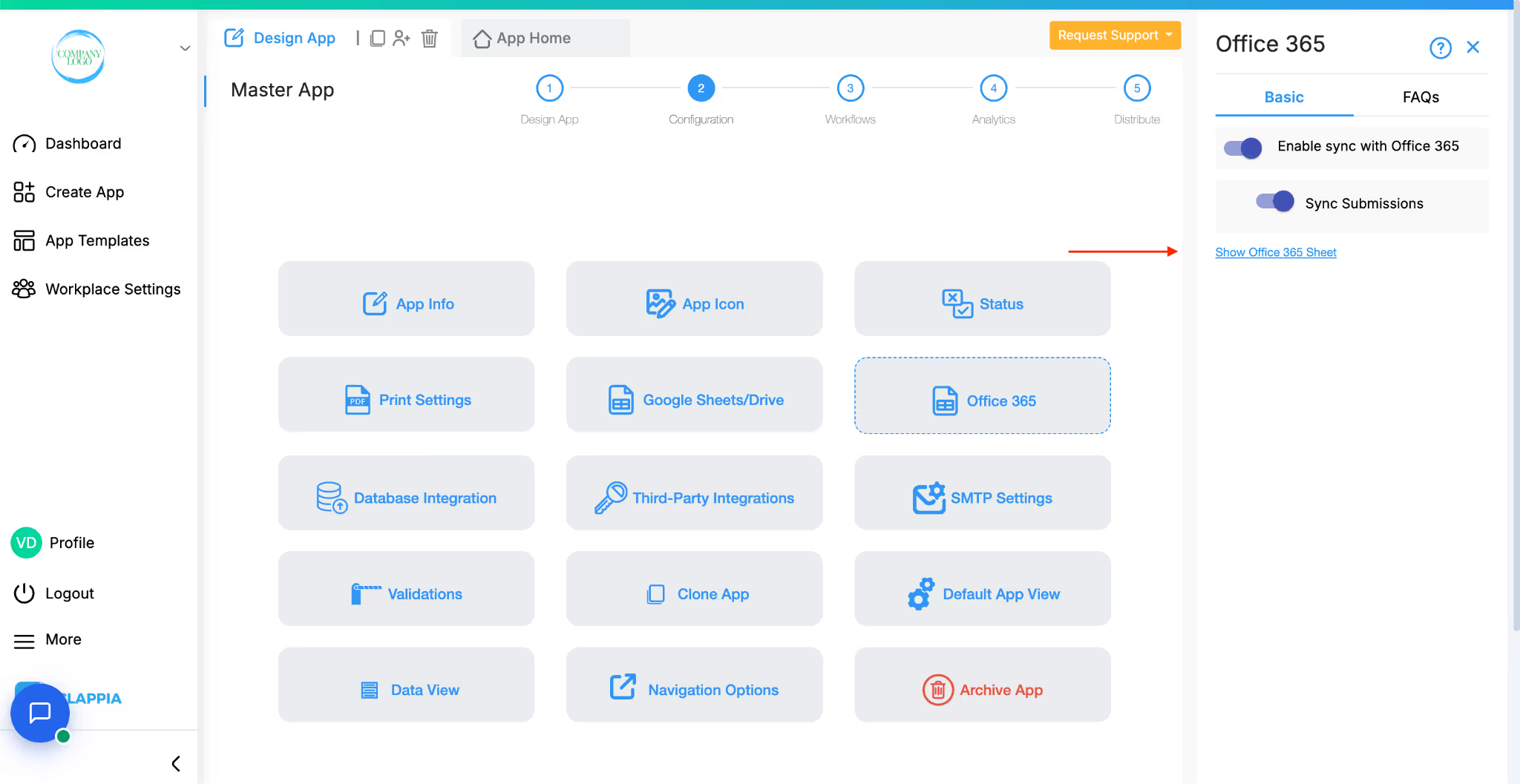
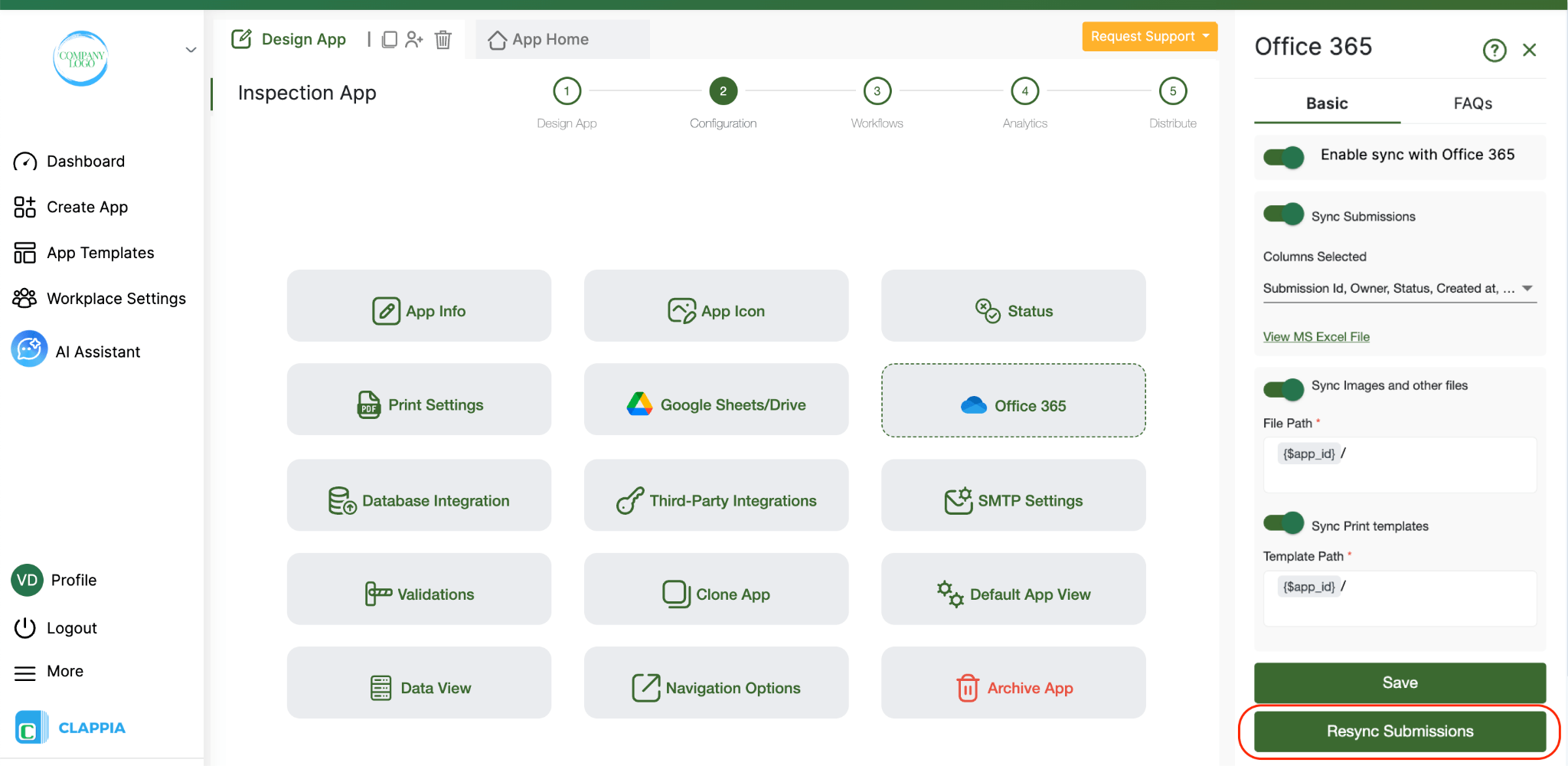
Go to Design App > Configuration > Office 365.
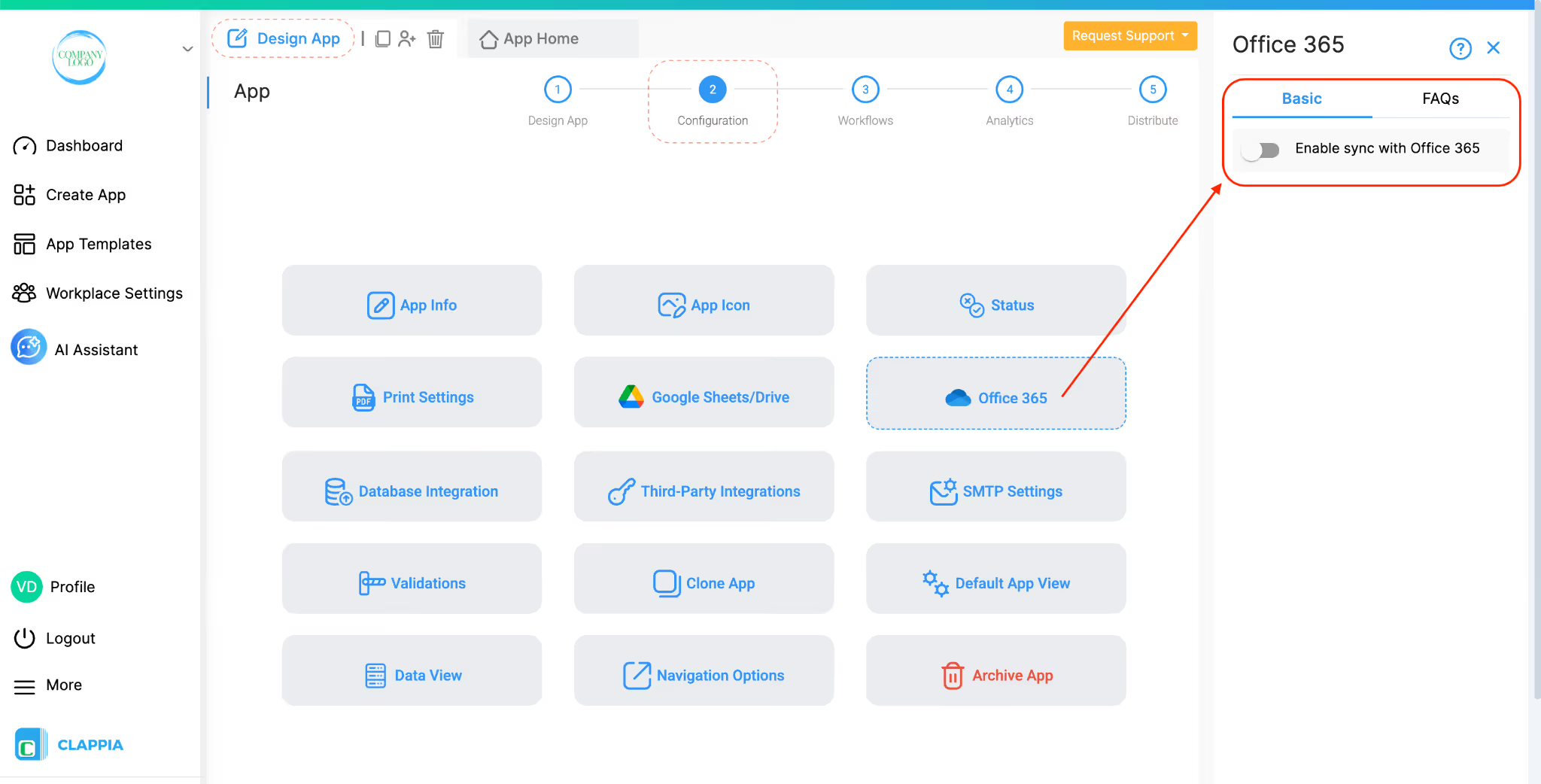
On the right panel, toggle the switch Enable sync with Office 365.
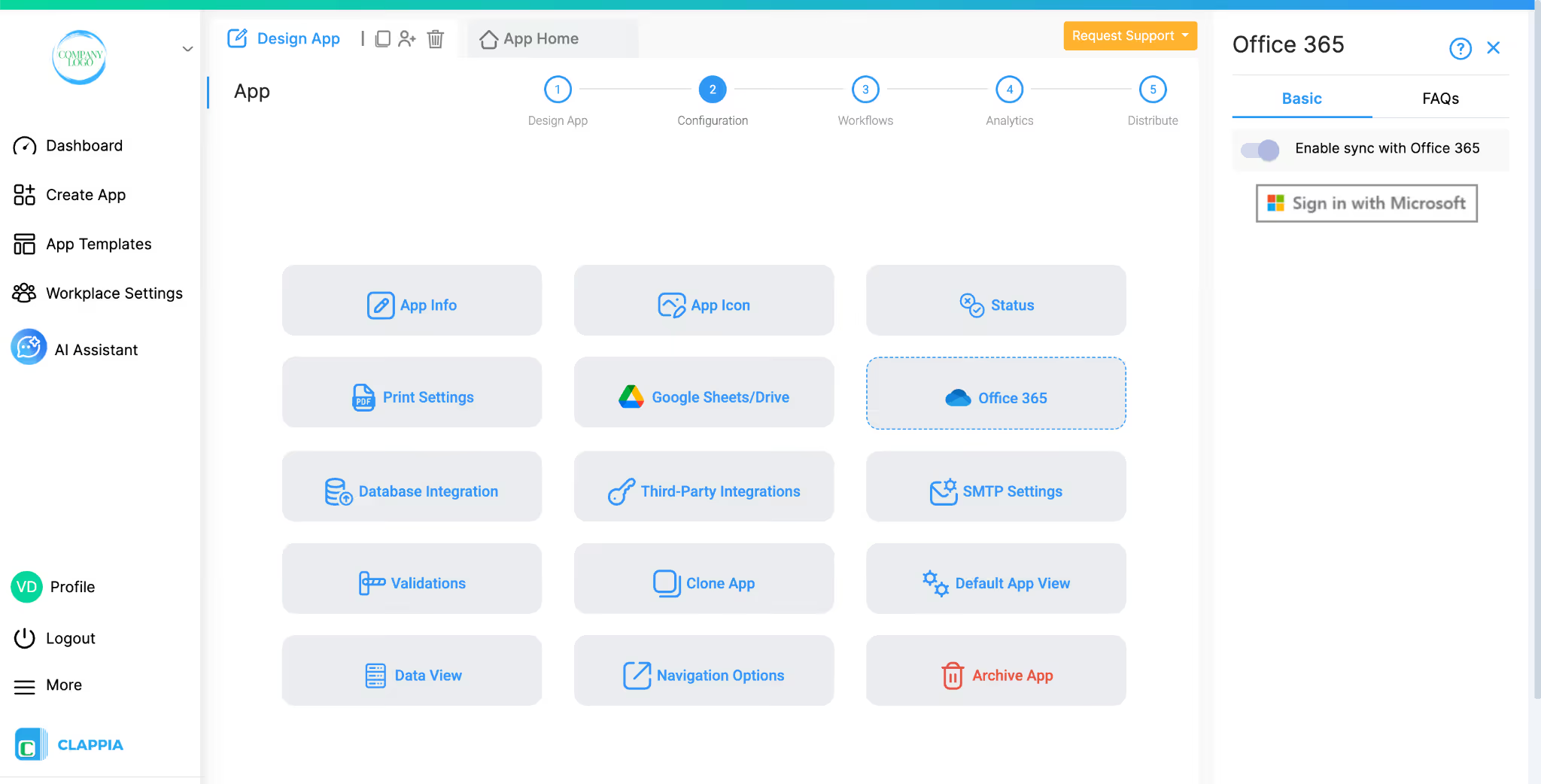
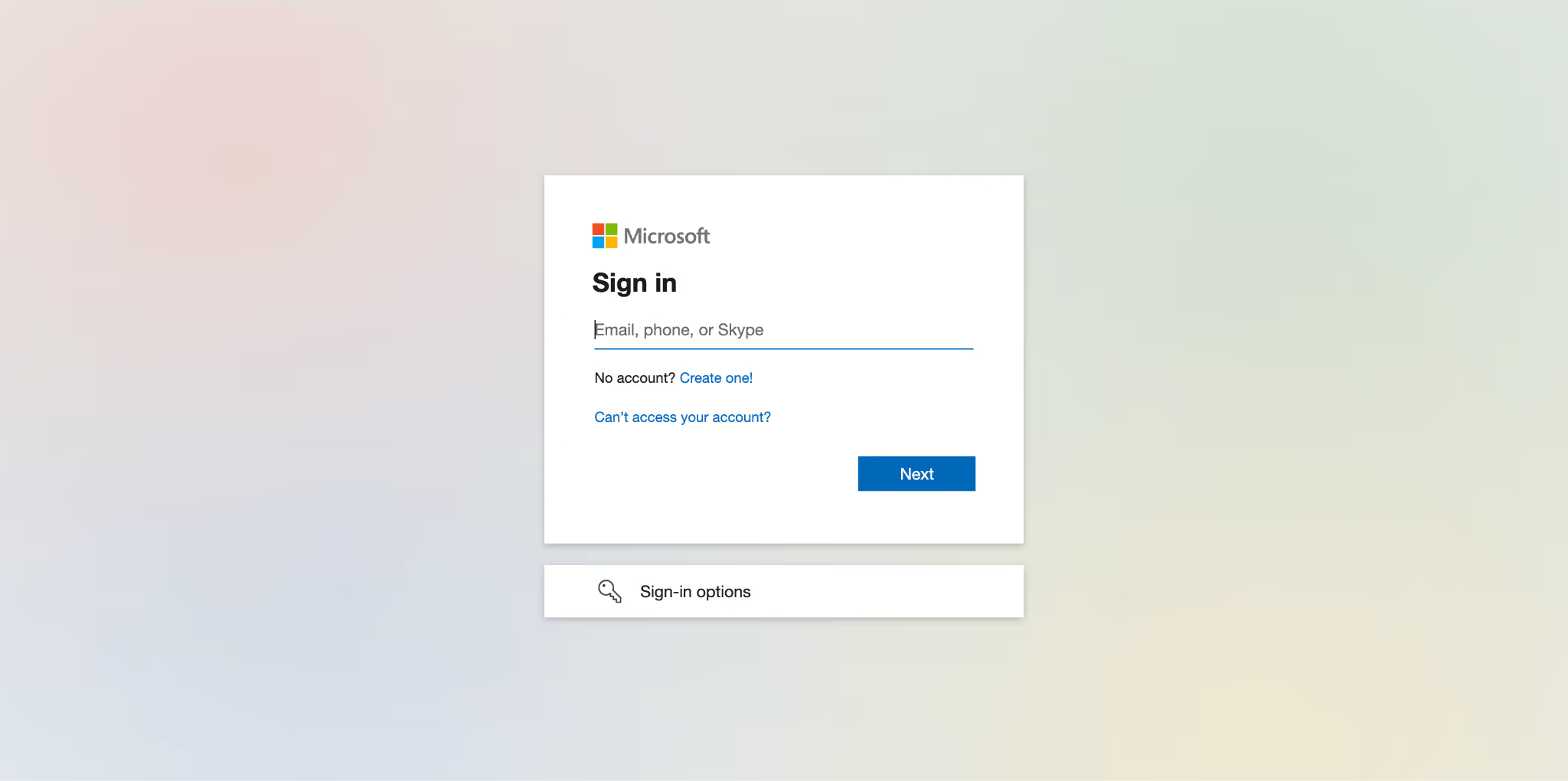
Click on Sign in with Microsoft. A pop-up window will appear where you can enter your Microsoft account credentials.
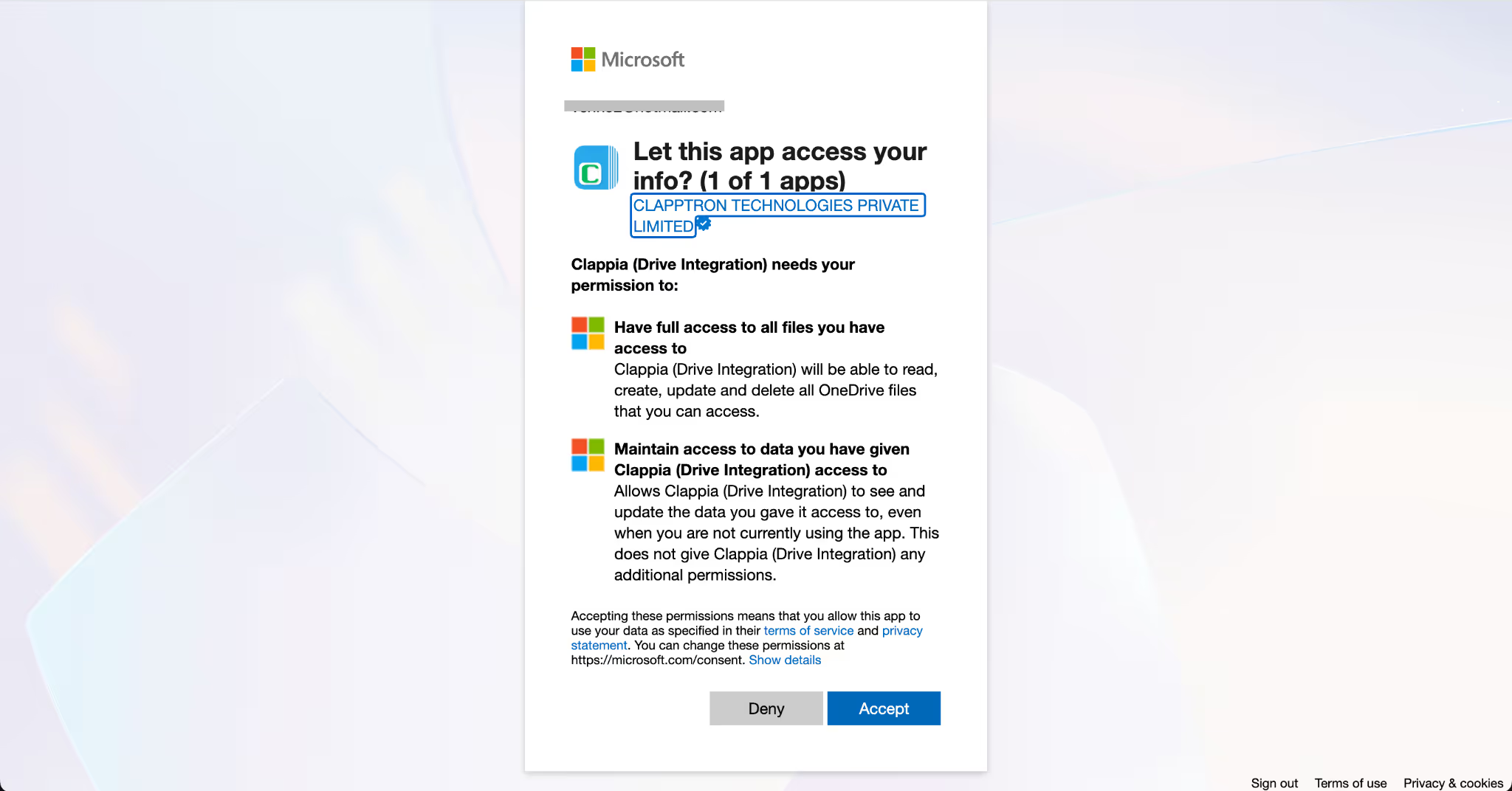
You will also be asked to grant Clappia access to your Office 365 files so that it can create and update the sheet. Click Accept to continue.
Once the connection is successful, you will see the option Show Office 365 Sheet in the right panel. Click this option to open the linked Office 365 Excel sheet.
All existing submissions from your app will already be listed here.
Any new submissions made in the app will automatically appear in this sheet.
If you turn off the toggle Enable sync with Office 365, no new submissions will be pushed. When you turn it back on, future submissions will start syncing again.
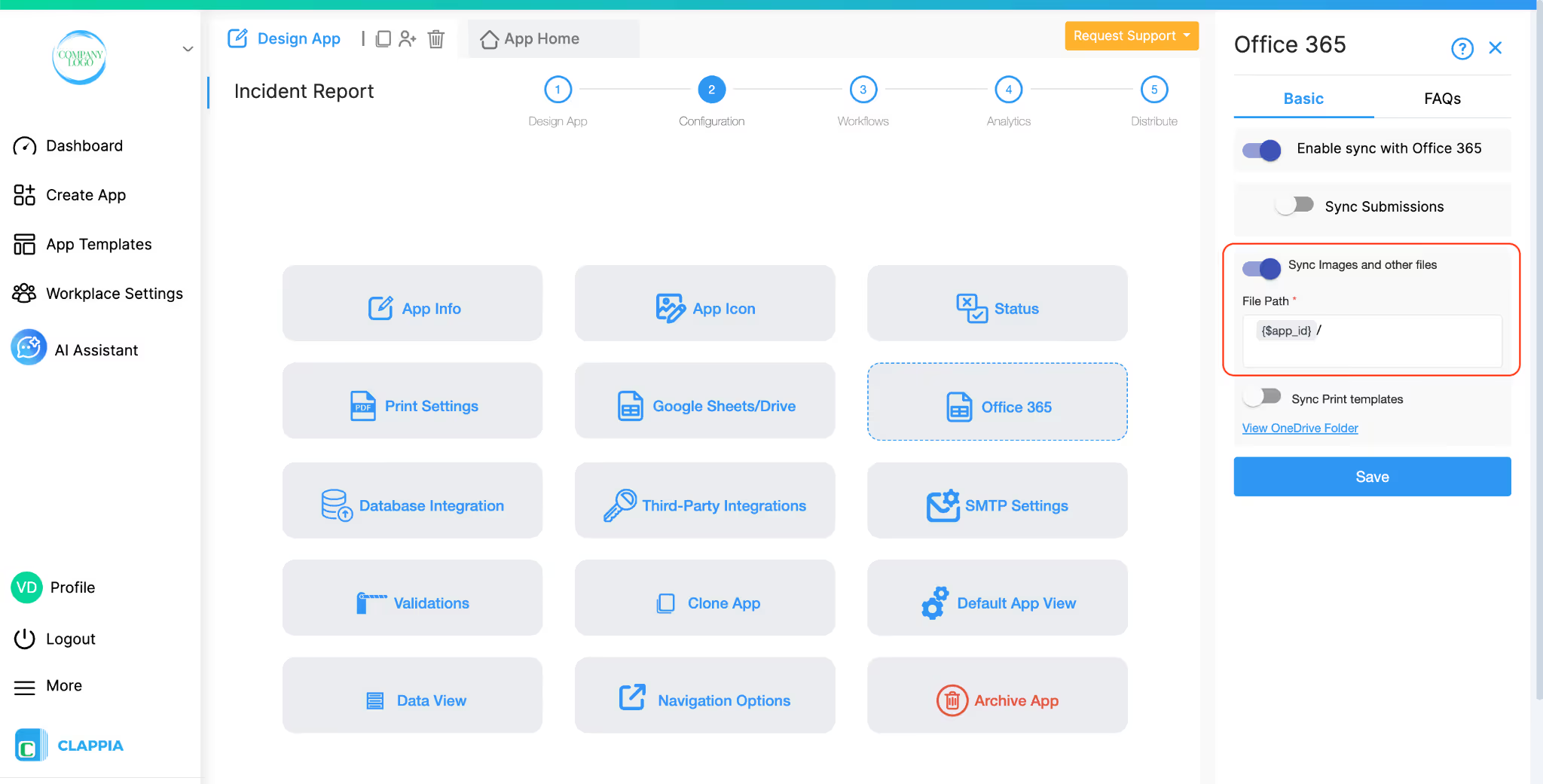
When your app submissions include files such as images, videos, or documents, Clappia can automatically upload these files to the connected OneDrive. This ensures that all file attachments from submissions are stored securely and are easy to access later.
After enabling Office 365 integration, you can enable the “Sync Images and Other Files” option from the right panel. Once this option is turned on:
Note:
Files (images, videos, documents) are only pushed to OneDrive for new submissions made after the integration is enabled.
Submissions created before enabling this feature or during periods when the feature is disabled will not automatically sync their files to OneDrive.
Workaround:
You can manually download these files from the Submissions tab. Use filters (e.g., by submission date) to find the files corresponding to the time when Drive integration was disabled, then upload them manually to your OneDrive.
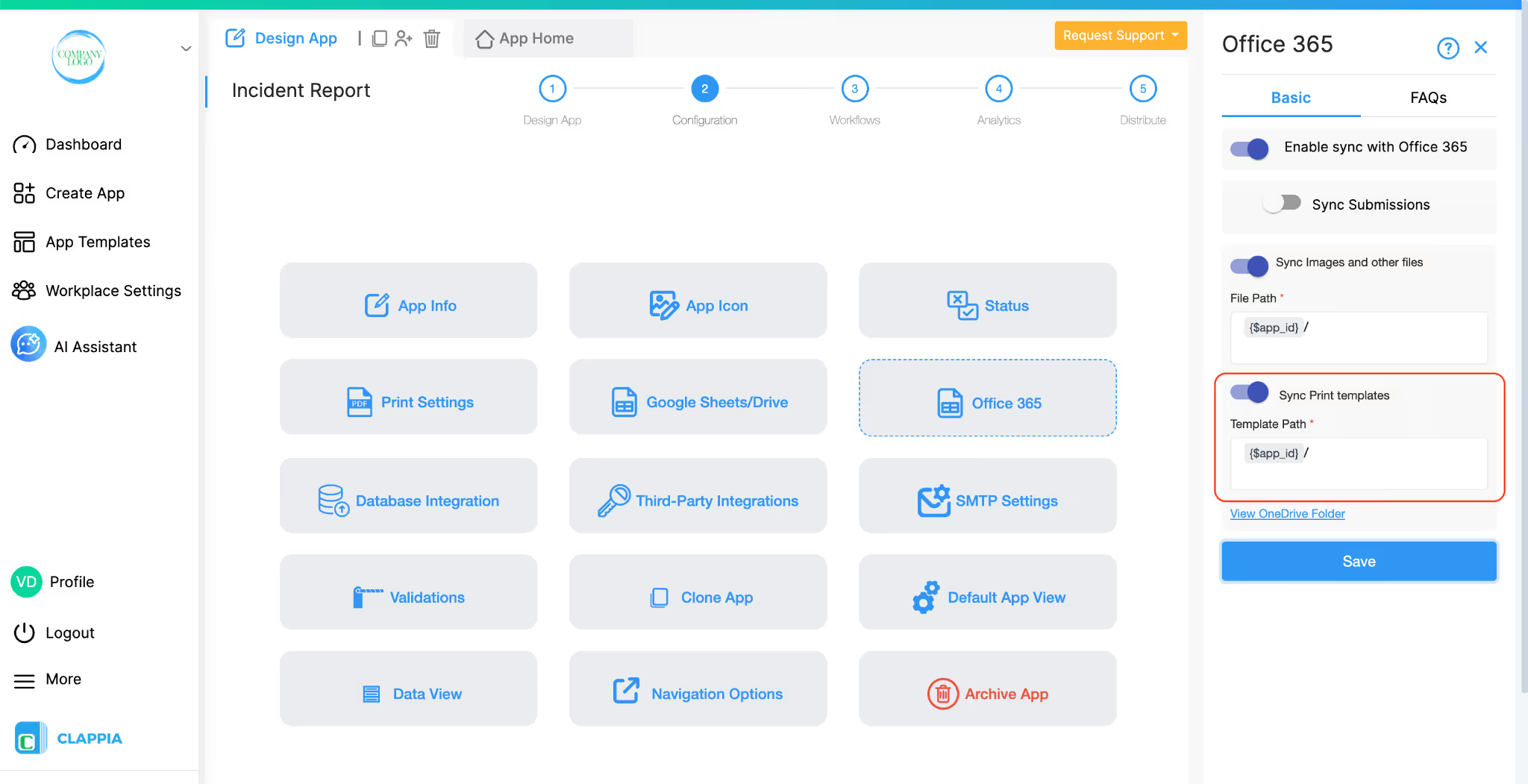
If your app generates PDF documents using print templates, you can enable Clappia to automatically save these PDFs to your connected OneDrive folder.
By enabling the “Sync Print Templates” option in the right panel:
Note:
PDFs from print templates are only pushed to OneDrive for new submissions made after enabling this feature. Older submissions will not sync their PDFs automatically. You can download them manually from the Submissions tab and upload them to OneDrive if needed.
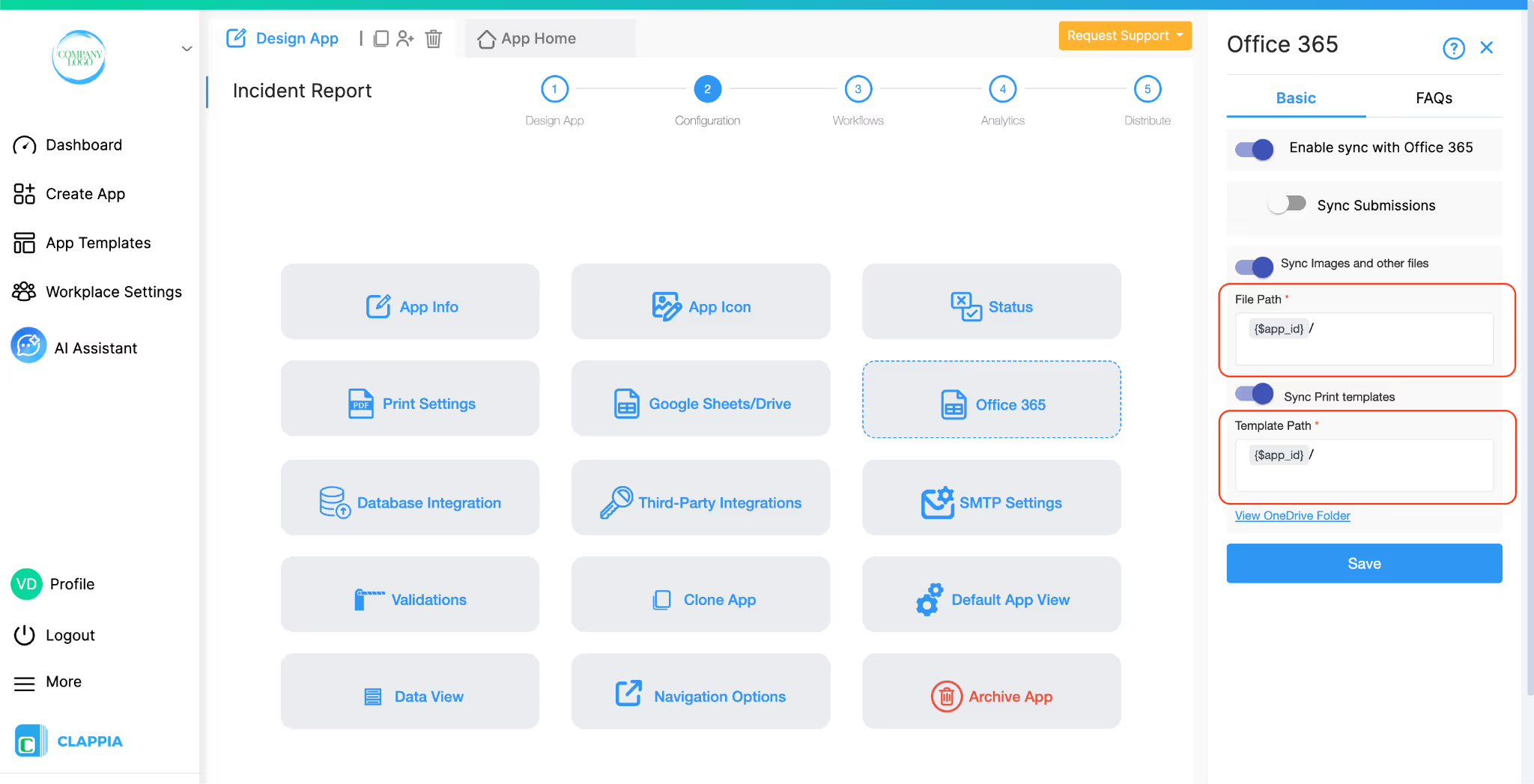
When submissions in your Clappia app include files (such as images, videos or PDFs from print template), these files are automatically stored in a OneDrive folder named after your app’s ID (e.g., AppID).
With the File Path setting, you can create a custom folder structure within this main AppID folder. This helps you organise files based on submission data instead of having all files stored in a single location.
How it works:
How to set it up:
Example Scenario:
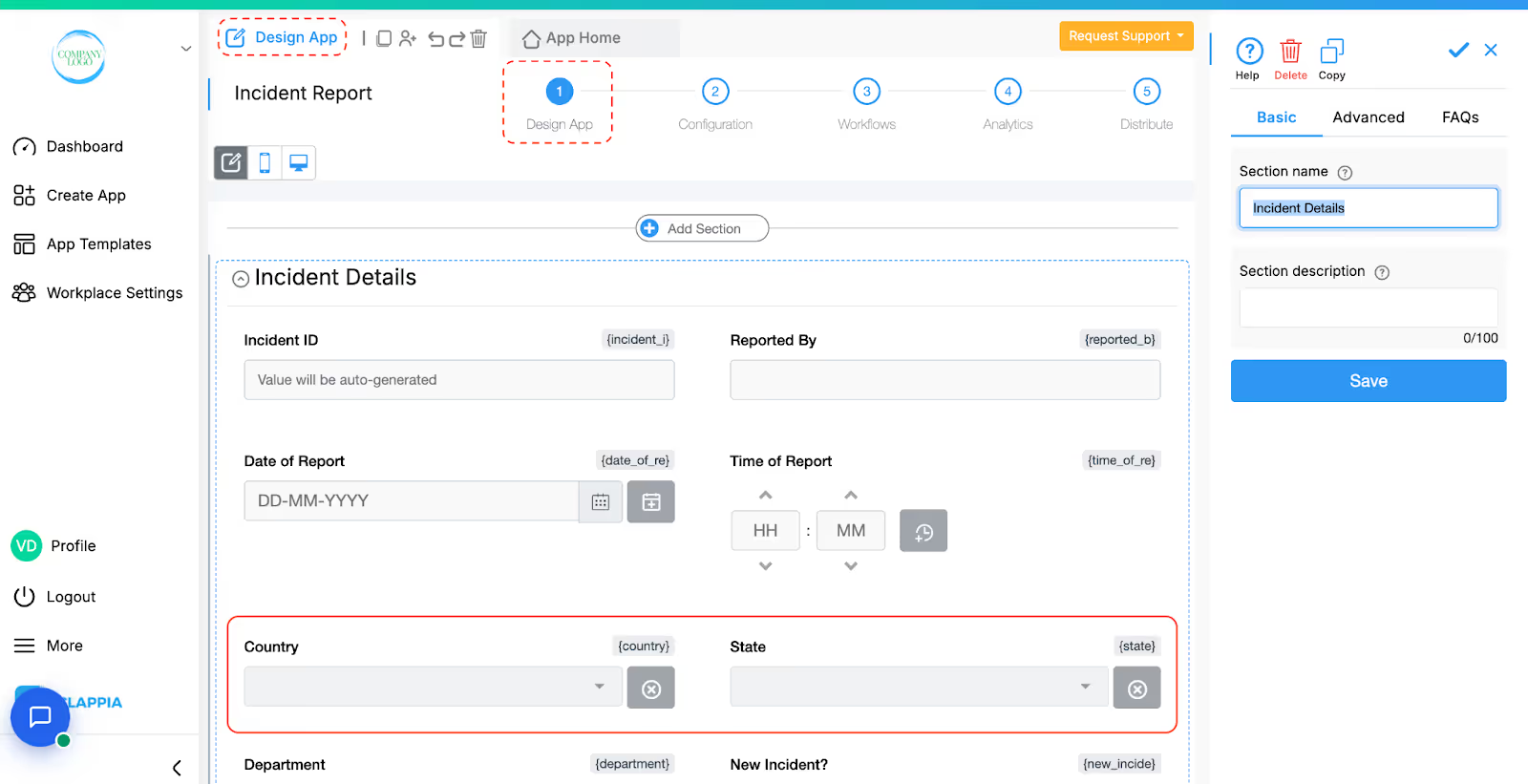
If your app contains dropdown fields named Country and State, having same variable names, and you set the File Path as:
{$app_id}/{country}/{state}
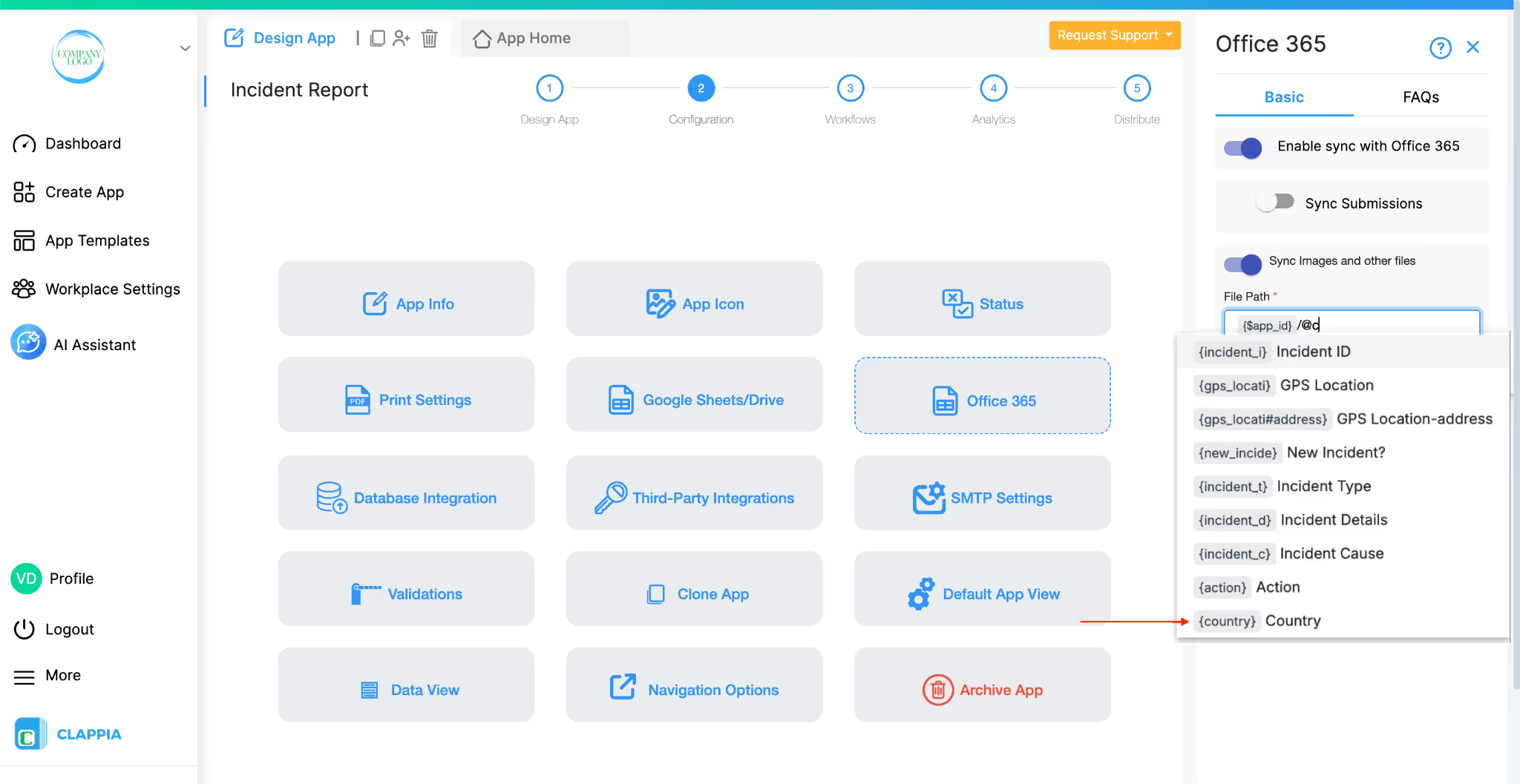
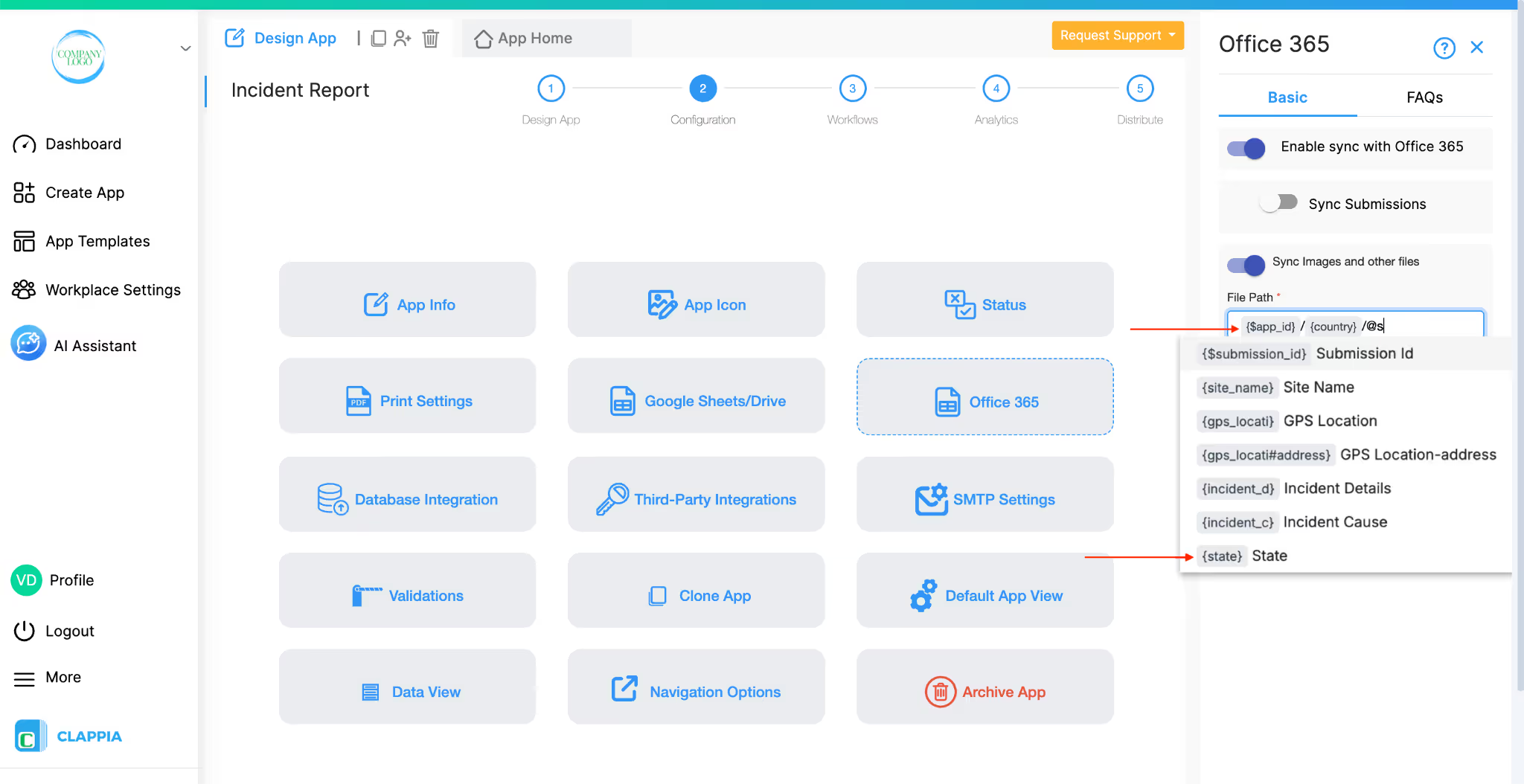
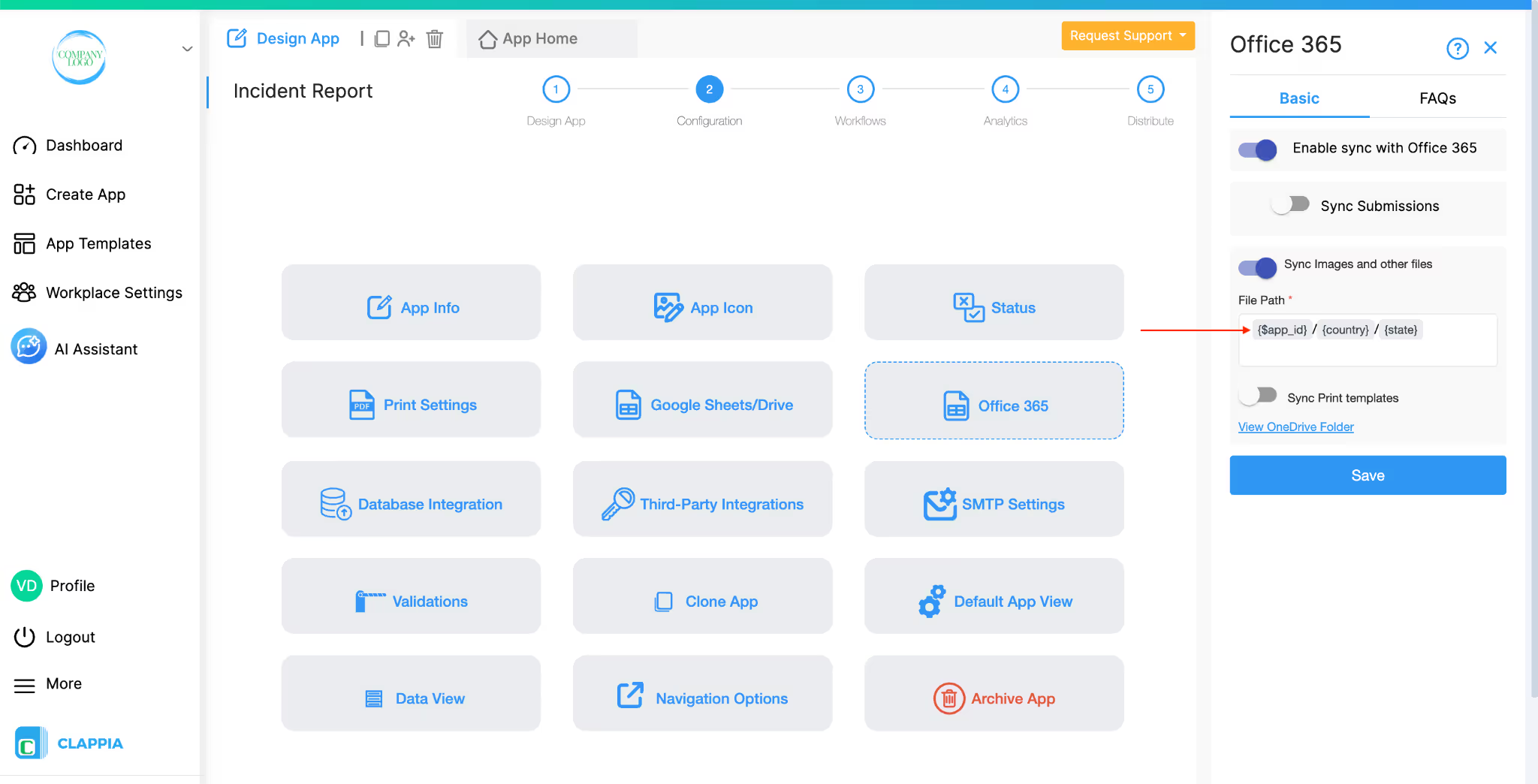
Then, a file uploaded by a user in the submission, selecting the dropdown named country as ‘India’ and state as ‘Karnataka’, will be saved like this:
AppID/India/Karnataka/
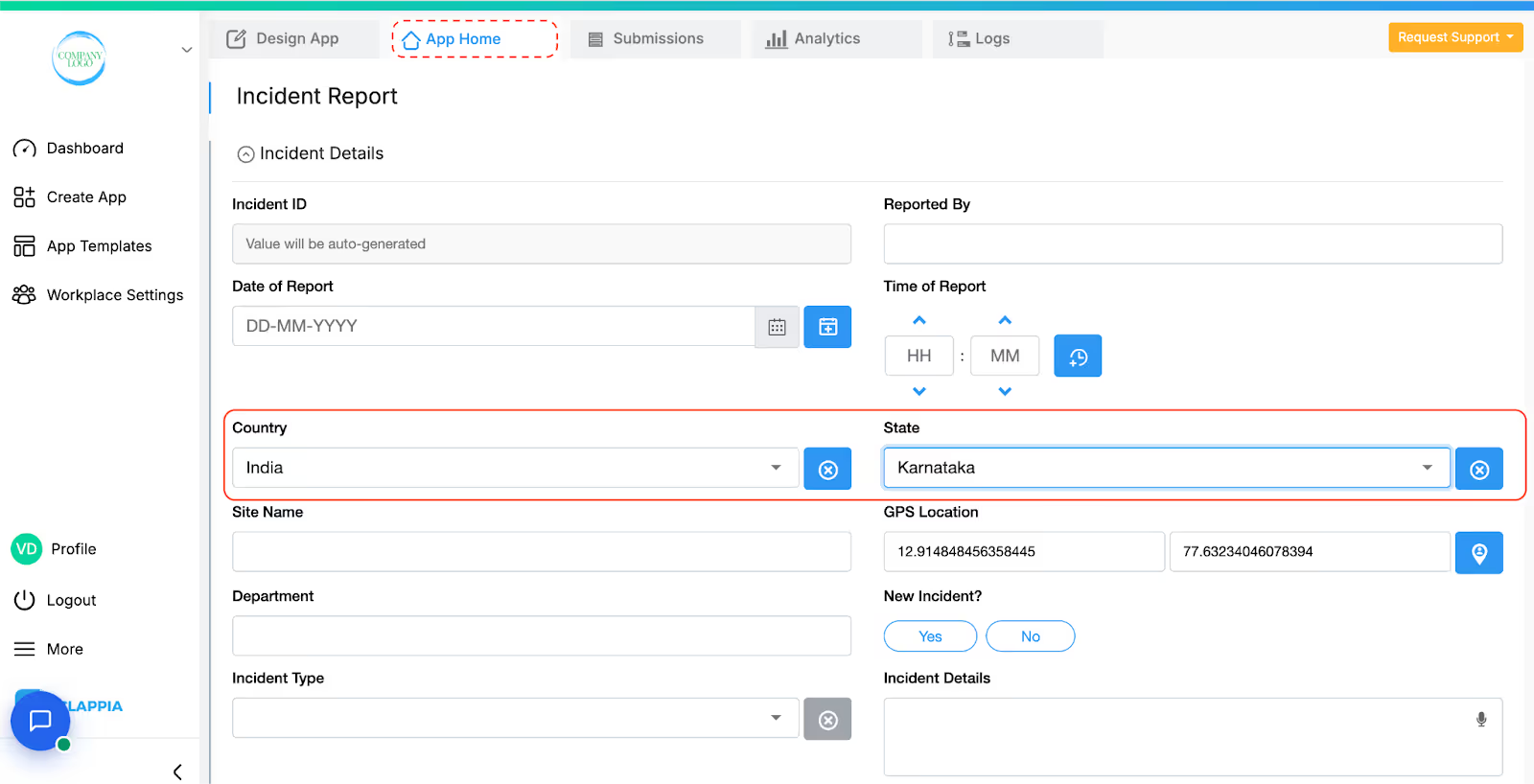
This approach is especially useful for apps that manage data from multiple regions, projects, or categories, as it keeps files neatly separated and easy to find.
Note on Subfolder Retention:
If you define a folder path using field variables (e.g., {$app_id}/{country}/{state}), Clappia creates subfolders inside the main AppID folder based on those field values.
If you later delete that field (e.g., state) from the app or remove it from the File Path, the corresponding subfolders and files will not be deleted automatically. These subfolders will remain in your OneDrive.
You can manually delete these subfolders if needed, but ensure you download or back up their files first to avoid data loss.
What you can do:
Retry connecting your Microsoft account. The sign-in window should now appear.
L374, 1st Floor, 5th Main Rd, Sector 6, HSR Layout, Bengaluru, Karnataka 560102, India
3500 S DuPont Hwy, Dover,
Kent 19901, Delaware, USA


.svg)




3500 S DuPont Hwy, Dover,
Kent 19901, Delaware, USA
L374, 1st Floor, 5th Main Rd, Sector 6, HSR Layout, Bengaluru, Karnataka 560102, India