

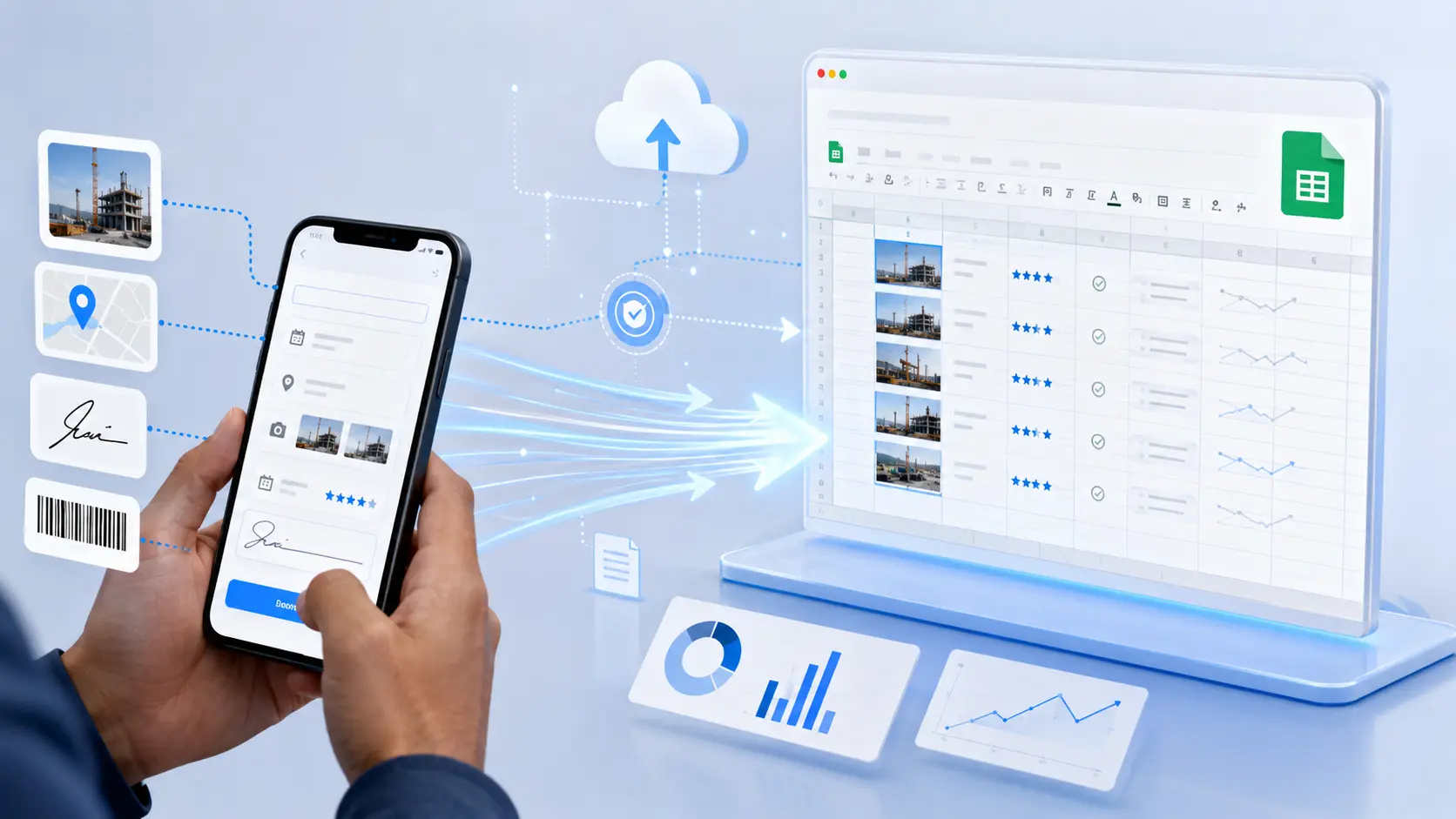
Still exporting form responses to spreadsheets every day?
Many businesses rely on Google Sheets to manage their operational data, but collecting information through emails, paper forms, or disconnected tools often creates unnecessary work. Teams spend hours copying data, fixing formatting issues, and searching for the latest version of a spreadsheet. As submissions increase, so do the chances of missing information or making manual errors.
A better approach is to connect your forms directly with Google Sheets.
With Clappia, every form submission can automatically appear as a new row in Google Sheets without requiring any coding. Photos, documents, and generated PDFs can also be organized in Google Drive, giving your team a centralized and up-to-date view of every submission. Unlike traditional form tools that only collect data, Clappia lets you build complete business workflows around your forms, making data collection faster, smarter, and more reliable.
In this article, you'll learn:
Whether you're collecting inspection reports, employee attendance, customer requests, sales visits, or inventory updates, connecting your forms with Google Sheets can eliminate repetitive work and help your team focus on what matters most.
Google Sheets has become one of the most widely used tools for storing and analyzing business data. It is familiar, collaborative, cloud-based, and easy to share across teams. However, manually transferring form responses into spreadsheets quickly becomes inefficient as your business grows.
Connecting your forms directly to Google Sheets solves this problem by automatically keeping your spreadsheet updated whenever a user submits or edits a form.
Some of the biggest benefits include:
Instead of downloading CSV files or copying information between systems, every form submission is automatically added to your spreadsheet. Your team no longer needs to spend valuable time performing repetitive data entry.
Manual copying often leads to missing rows, incorrect values, duplicate records, or formatting mistakes. Automatic synchronization helps maintain accurate and consistent data.
Since Google Sheets updates automatically, managers always have access to the latest information without waiting for someone to export reports.
Google Sheets makes it easy for multiple departments to access the same live dataset. Operations teams, managers, finance departments, and executives can all work from a single source of truth.
Clappia offers a built-in Google Sheets and Google Drive integration, allowing businesses to connect their forms without writing a single line of code.
Once connected, Clappia automatically creates and maintains synchronization between your app and Google Sheets.
The integration supports much more than simply adding new rows. Depending on your configuration, it can automatically synchronize:
Files uploaded through your forms can also be stored in Google Drive, making it easy to organize supporting documents alongside your spreadsheet data.
Because everything is synchronized automatically, your Google Sheet always reflects the latest information collected through your Clappia app.
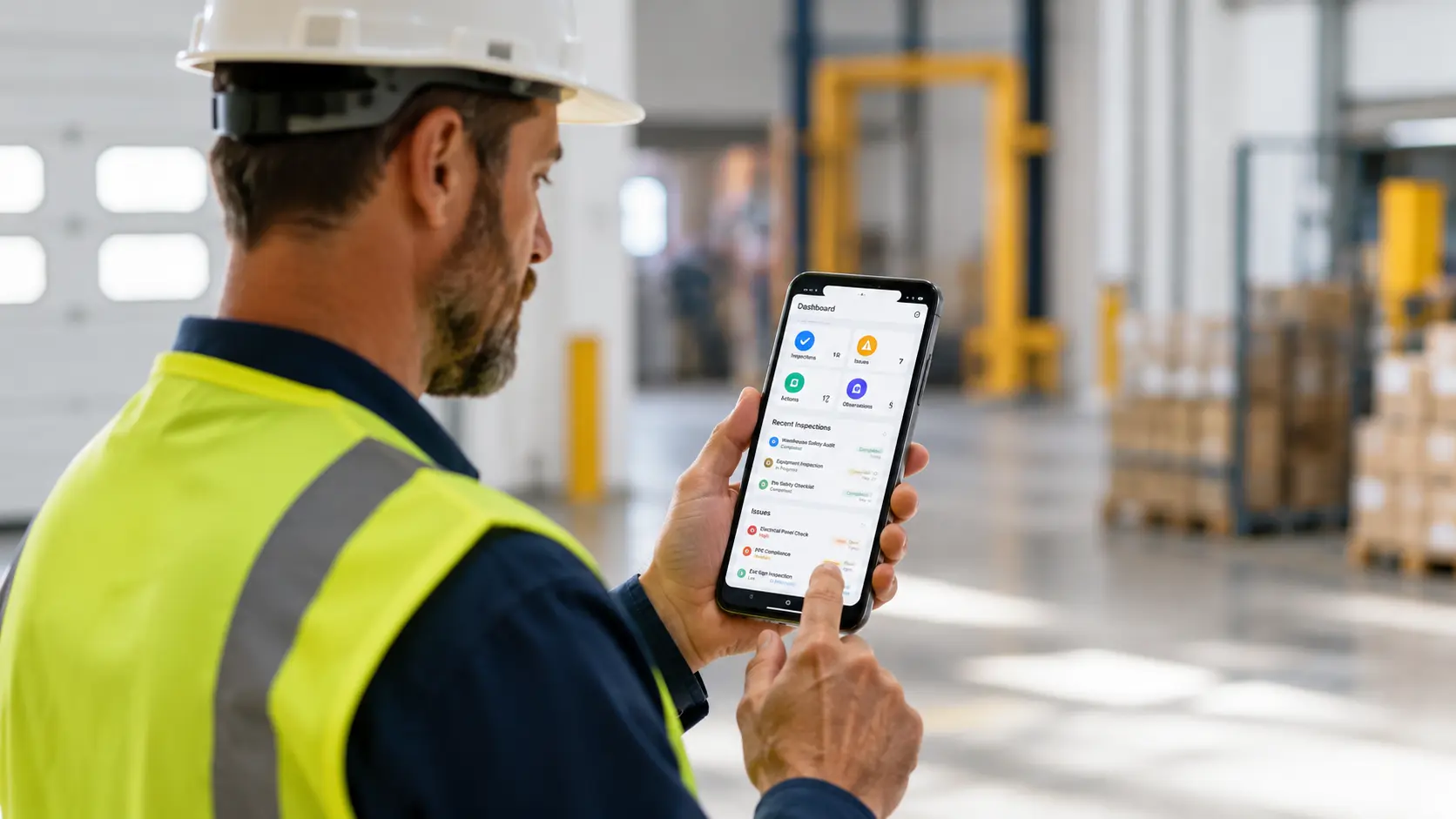
Imagine a field engineer completing an inspection form on their mobile device.
Instead of sending emails or manually updating spreadsheets, Clappia automatically performs the entire process behind the scenes.
The entire process takes only a few seconds and requires no manual intervention.
Almost every department can benefit from automatically syncing forms with Google Sheets.
Employees submit attendance through a mobile form.
Every check-in is automatically stored in Google Sheets, making payroll preparation much easier.
Inspectors complete digital inspection forms with photos and comments.
Each inspection instantly appears in Google Sheets, allowing supervisors to monitor field activities in real time.
Sales representatives record customer visits, meeting notes, expenses, and follow-up actions.
Managers receive a live spreadsheet that provides complete visibility into daily sales activities.
Businesses can collect customer satisfaction surveys and automatically consolidate all responses into one spreadsheet for analysis.
Employees scan QR codes or barcodes, inspect equipment, and submit maintenance updates.
Every inspection record is automatically logged into Google Sheets for reporting and historical tracking.
Maintenance teams, IT departments, or facility managers can collect service requests through Clappia while maintaining a live operational spreadsheet for tracking request status.
Many form builders can send responses to spreadsheets, but business processes often require much more than simply collecting information.
Clappia combines powerful form building with workflow automation, mobile capabilities, and enterprise-ready features that help businesses digitize complete operations instead of just replacing paper forms.
For example, your Google Sheets integration can be combined with:
Instead of using multiple tools for data collection, workflow automation, approvals, reporting, and file management, Clappia brings everything together in one platform while continuing to synchronize your data with Google Sheets.
One of the biggest advantages of Clappia is that you don't need third-party automation tools or custom scripts to synchronize your form data with Google Sheets. The integration is built directly into the platform, allowing you to set it up in just a few minutes.
Follow these simple steps:
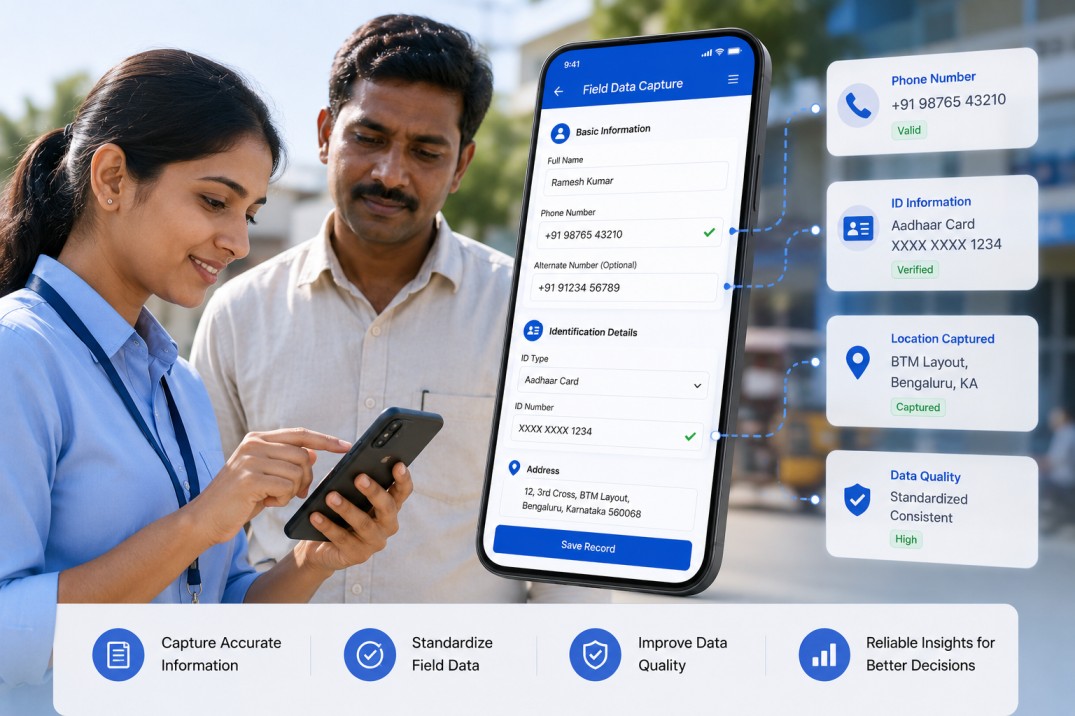
Start by creating your app in Clappia using the drag and drop App Designer. Add the fields your business needs, such as text fields, dropdowns, dates, GPS location, photos, signatures, barcode scanners, or file uploads.
Design your form exactly the way your team will use it in the field.
After designing your app, open the Design App section and navigate to Configuration.
Select Google Sheets/Drive from the available integration options.
Enable Google Sheets and Google Drive integration.
You'll be redirected to Google's authentication screen where you simply choose your Google account and grant the required permissions.
Once connected, Clappia automatically creates a dedicated Google Sheet and a Google Drive folder for your app.
Unlike many form builders that push everything into a spreadsheet, Clappia allows you to choose exactly which fields should be synchronized.
For example, you might only want to sync:
while excluding internal calculation fields or temporary values.
If you later add new fields to your app, you can simply select them and resync the sheet.
If your app captures photos, videos, documents, or other attachments, you can enable Sync Images and Other Files.
Every new attachment will automatically be uploaded to your connected Google Drive.
You can even organize files into dynamic folders based on submission values such as:
This makes finding supporting documents much easier than storing everything in a single folder.
Submit a sample record.
Within seconds you'll notice:
Your form is now connected and ready for production use.
Automatically storing data in Google Sheets is only the beginning.
Because your forms are built on Clappia, you can automate the entire business process without writing code.
Need manager approval before closing an inspection?
Simply configure an approval workflow.
Managers receive notifications, review submissions, approve or reject them, and every status update is automatically reflected in your Google Sheet.
Automatically send emails whenever a form is submitted.
Examples include:
Keep field teams informed by automatically sending WhatsApp messages after submissions or approvals.
Capture the exact location where the form was submitted.
This is especially useful for:
Instead of typing equipment IDs manually, users can simply scan a barcode or QR code.
This improves speed while reducing typing errors.
Collect customer approvals or technician sign-offs directly inside the form.
The signatures become part of the submission while the related files remain safely stored in Google Drive.
Need to extract information from invoices, ID cards, or handwritten documents?
Add an AI block to automatically capture important information before storing it in Google Sheets.
Many field operations happen in places with poor internet connectivity.
Clappia allows users to continue collecting data offline.
Once the device reconnects, all pending submissions are synchronized automatically with both Clappia and Google Sheets.
Imagine a manufacturing company conducting daily equipment inspections across multiple factories.
Each inspector opens the inspection app on their mobile device.
During the inspection they:
Once the form is submitted:
Instead of spending hours consolidating reports from multiple locations, management has real-time visibility into every inspection as it happens.
To get the most value from your Google Sheets integration:
Yes. Every new submission can automatically appear as a new row in your connected Google Sheet.
The corresponding row in Google Sheets is updated automatically, ensuring your spreadsheet always reflects the latest information.
Yes. Images, videos, documents, and even generated PDF reports can be automatically synchronized to Google Drive.
Yes. Clappia works on web, Android, and iOS, allowing users to submit forms from virtually anywhere.
Absolutely. Multiple users can submit records at the same time, with each submission automatically synchronized to Google Sheets.
If your team still spends time exporting spreadsheets, copying data, or manually organizing files, it's time to automate the process.
With Clappia, you can build powerful business forms, connect them directly to Google Sheets, automatically store supporting files in Google Drive, and extend the entire process with approvals, notifications, dashboards, AI, and mobile workflows.
Whether you're managing inspections, employee attendance, sales visits, maintenance requests, customer surveys, or inventory operations, connecting your forms with Google Sheets helps eliminate repetitive work while ensuring your data is always accurate and up to date.
Start with a simple form today, then gradually add workflows, approvals, dashboards, and AI as your business grows. Instead of just collecting data, you'll build a complete digital process that saves time, improves collaboration, and scales with your organization.
 Get Started – It’s Free
L374, 1st Floor, 5th Main Rd, Sector 6, HSR Layout, Bengaluru, Karnataka 560102, India
3500 S DuPont Hwy, Dover,
Kent 19901, Delaware, USA


.svg)




3500 S DuPont Hwy, Dover,
Kent 19901, Delaware, USA
L374, 1st Floor, 5th Main Rd, Sector 6, HSR Layout, Bengaluru, Karnataka 560102, India

.avif)

.jpg)