Still importing spreadsheets every morning?
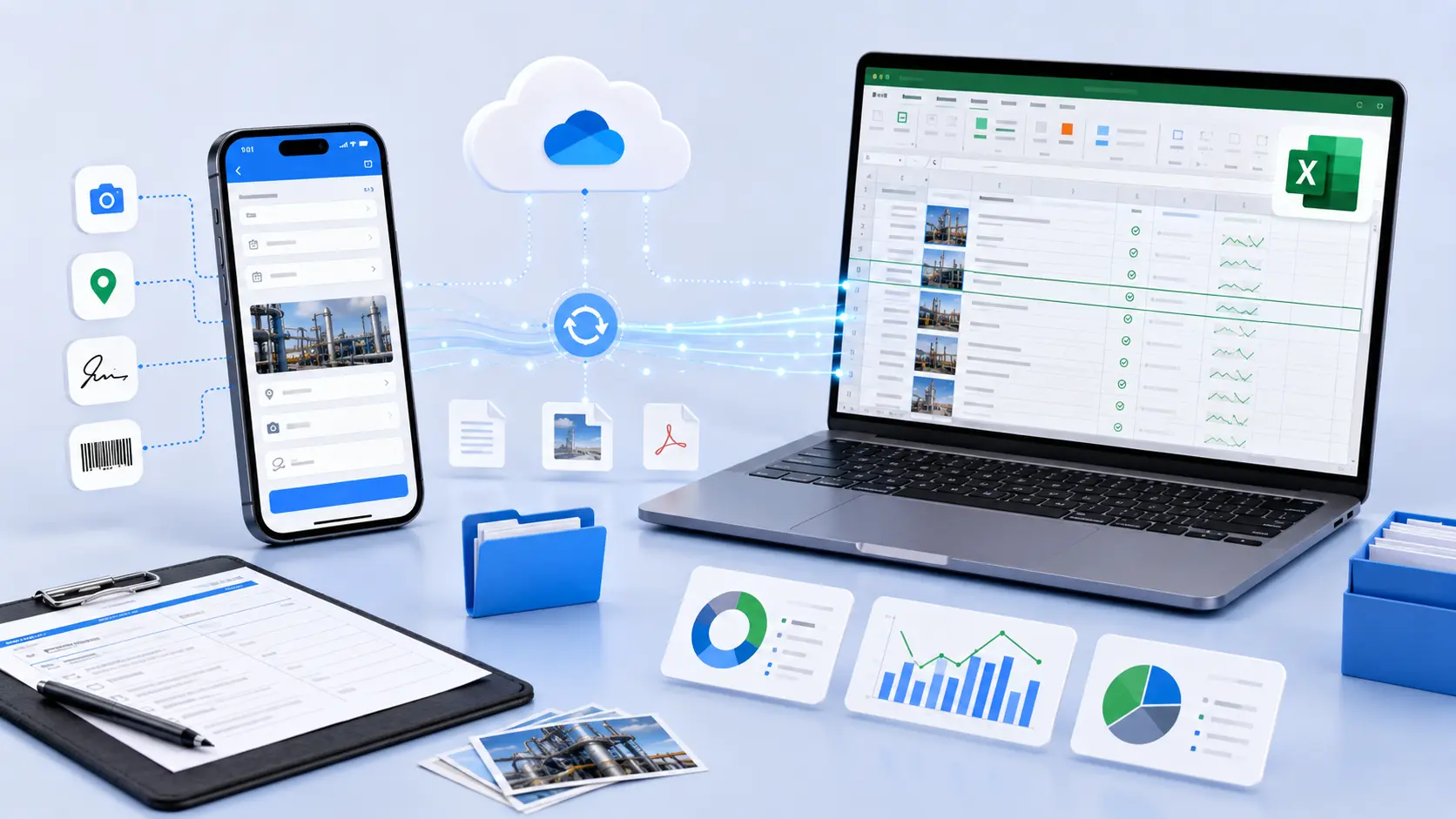
Here is the short answer: with Clappia's built-in Office 365 integration, every form submission automatically becomes a new row in an online Excel workbook stored on OneDrive. Existing submissions sync when you first connect, future submissions sync in real time, and photos, documents, and PDF reports upload to OneDrive alongside the workbook. No exports, no scripts, no Power Automate flows.
Excel is still the backbone of daily operations for most teams: inspections, inventory, attendance, customer requests, compliance records. The problem was never Excel. The problem is how data gets into Excel. Paper forms, emails, and WhatsApp messages get copied into spreadsheets by hand, which burns hours every week, introduces typing errors, and leaves managers working with yesterday's numbers.
This guide shows you how to turn your workbook into a live reporting hub, using forms you can build yourself on Clappia's free plan.
Excel stays because everyone knows it. Finance builds formulas, operations builds pivot tables, executives read dashboards. Stored on OneDrive, the workbook is collaborative and version-controlled through Microsoft 365. What breaks at scale is manual entry. Here is the difference:
| Manual Excel updates | Clappia + Excel on OneDrive |
|---|---|
| Export CSVs and paste rows daily | Rows created automatically in seconds |
| Typing errors and duplicate rows | Structured fields, validated at capture |
| Photos and PDFs scattered in email | Files auto-organized in OneDrive folders |
| Reports ready end of day or week | Workbook updates live, all day |
| Scripts, macros, Power Automate flows | One-time connection, zero code |
You connect your Microsoft 365 account once. Clappia then creates and maintains the link between your app and an online Excel workbook in OneDrive. Unlike integrations that only push future records, Clappia syncs all existing submissions immediately, then keeps the workbook current as new submissions arrive, submissions get edited, or workflow statuses change.
Here is the flow once it is live:
What happens after you connect Clappia with Excel on OneDrive
Every time someone submits your form, a corresponding row appears in the connected workbook. There is nothing to export, paste, schedule, or script. For teams handling hundreds or thousands of submissions a month, that alone recovers hours of administrative time every week.
And you keep Excel as your reporting source. Managers continue building pivot tables, charts, and KPI trackers on live data, while field teams only ever see a simple form on their phone through the Clappia mobile app.
Build a form that fills your Excel workbook on its own.
Get Started For FreeCreate your app with the drag and drop App Designer.
Add the fields your process needs: dropdowns, dates, GPS location, photo capture, QR and barcode scanning digital signatures, even AI-powered data extraction with the AI Block.
Open the Office 365 integration settings, sign in with your Microsoft account, and authorize OneDrive access. That is the only setup Microsoft asks of you.
Choose the Excel workbook that should receive submissions, or create a new one per app: one for inspections, one for attendance, one for maintenance. Separate workbooks keep reporting clean.
Only the fields you select are synced, so internal calculations stay out of your reports. A typical mapping looks like this:
| Clappia field | Excel column |
|---|---|
| Employee Name | Employee Name |
| Site | Site |
| Inspection Date | Date |
| Equipment ID (scanned) | Asset ID |
| Status | Inspection Status |
| GPS Location | Location |
| Remarks | Comments |
If your app evolves later, add the new fields and resync. No rebuilding.
Submissions rarely contain only text. Turn on file synchronization and every photo, signed document, certificate, and generated PDF uploads to OneDrive automatically. Files can be organized into dynamic folders based on submission values like customer name, project, site, or asset number, so nothing gets lost in one giant folder.
Submit a test record. Within seconds a new row appears in Excel, files land in OneDrive, and any later edit updates the same row. Your workbook is now a live reporting database.
Because the form lives in Clappia, the workbook is only the start. The same submission can drive the whole process through workflows:
if part of your team prefers Google's ecosystem, the same apps also support Google Sheets sync.
A facilities management company maintains hundreds of commercial buildings. Each technician opens the Clappia app, selects the building, scans the equipment QR code, records readings, uploads photos, captures the customer's signature, and submits.
Immediately after submission, a new row appears in the maintenance workbook on OneDrive, photos upload automatically, a PDF inspection report is generated, and the supervisor gets an email. If a fault is detected, an approval workflow starts on its own. The maintenance manager never chases spreadsheets, because the workbook updates itself throughout the day.
Yes. Clappia's Office 365 integration adds a new row to your connected workbook for every submission, and it also backfills all existing submissions the moment you first connect the account.
The matching row in the workbook updates automatically. Workflow status changes sync too, so Excel always shows the latest state of every record without anyone reopening the file to fix it.
Yes. Images, videos, documents, and generated PDF reports upload to OneDrive automatically. You can organize them into dynamic folders based on form values such as customer, project, site, or asset number.
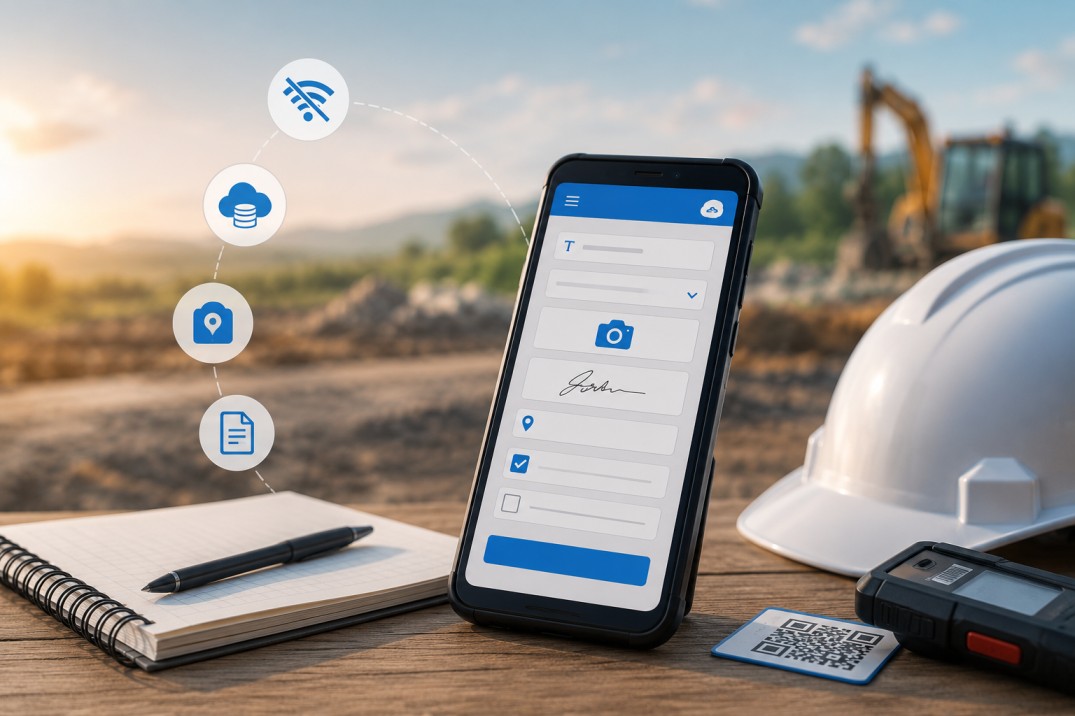
Yes. Offline data entry is the default on the Clappia mobile app. Submissions captured without internet sync to both Clappia and your Excel workbook as soon as the device reconnects.
Yes. Any number of users can submit simultaneously from web, Android, or iOS, and every submission is synchronized to the workbook without conflicts or manual merging.
You do not need to replace Excel. You need a better way to fill it. Build your inspection, attendance, or maintenance form in Clappia, connect your Microsoft 365 account once, and let every submission update the workbook on its own, with reports delivered straight to Gmail, WhatsApp, or Slack.
The free plan is permanent, so you can build the app, connect OneDrive, and test the full sync before paying anything. Sign up and start building your first Excel-connected app in minutes.
 Get Started – It’s Free
L374, 1st Floor, 5th Main Rd, Sector 6, HSR Layout, Bengaluru, Karnataka 560102, India
3500 S DuPont Hwy, Dover,
Kent 19901, Delaware, USA


.svg)




3500 S DuPont Hwy, Dover,
Kent 19901, Delaware, USA
L374, 1st Floor, 5th Main Rd, Sector 6, HSR Layout, Bengaluru, Karnataka 560102, India

.avif)