


Spare parts logging during maintenance is only as reliable as the master data behind it. When a technician logs a bearing replacement after a service, the item they select from the dropdown should have a consistent name, a unit of measure, and a category that distinguishes it as a spare part rather than a consumable or a raw material. When that record is later reviewed for stock reconciliation or maintenance cost analysis, the item needs to be identifiable and linkable to the machine it was used on.
Spares are a real line item. NIST estimates that US manufacturers spent more than $57 billion on machinery maintenance in 2016, with additional money tied up in inventory held to buffer against breakdowns. If consumption data is split across duplicate items or logged twice, nobody can tell which spares are actually being used, and stock levels drift away from reality.
This guide covers how to set up the two master apps that make accurate spares logging possible in a Clappia-based maintenance system: the Machine Master, which catalogs equipment and links machines to their critical parts, and the item catalog (Store Master), which maintains the list of spare parts that technicians select from when logging consumption. It then shows how those masters feed into the spares logging section of the maintenance report.
If you are new to Clappia: it is a no-code platform for building operational mobile apps. You build apps by adding blocks, which are individual field types. A Get Data from Other Apps block is a field type that looks up records from another Clappia app and can filter the results. A copyable section is a section users can repeat as many times as needed, each copy with the same set of fields. Validation blocks are rules that block (Error level) or warn (Warning level) when a submission does not meet a defined criterion.
The spares logging section of the maintenance report is a selection-based form. The technician chooses an item from a dropdown list filtered to the Spares category, and the item's details auto-fill. This means the quality of what the technician can select is entirely determined by what is in the item catalog.
If the catalog has duplicate items (the same bearing listed under three slightly different names), the technician might log consumption against any one of them, making it impossible to get an accurate total consumption figure for that item. If an item is categorised incorrectly, it will not appear in the Spares dropdown at all. If the unit of measure is wrong, the quantity logged will not make sense in a stock context.
The machine master has its own role: it is the source of the machine identifier that the report app uses to filter checklists and to attribute each maintenance event to a specific machine. Without accurate machine records, the filtering that makes the report fast and accurate breaks down.
Master data is not a one-time setup task. The item catalog and machine records need to be maintained as new equipment is installed, parts change, and old machines are retired. The quality of every downstream maintenance record depends on the quality of these two masters.
The Machine Master app is where every piece of equipment is registered. Open the app and create one record per machine. Each record has two sections: the main machine details and the critical parts list.
The first section captures the machine's identity and attributes. Add the following fields:
When a machine is taken out of service permanently, its status changes to Scrapped. At that point, three additional fields become relevant: the date of scrapping, the reason, and any additional details about the disposal. These fields should only appear when needed, not for every active machine.
Configure a Display Condition on each of these three fields to show only when Machine Status equals Scrapped. In Clappia, a Display Condition is a rule set on a field that controls whether the field is visible based on the value of another field. When a machine is active, these fields are invisible and do not clutter the form. When the machine is scrapped, they appear and become available for documentation.
The lower section of each machine record is a copyable section where you document the critical spare parts associated with that machine. This serves two purposes: it gives maintenance planners visibility into which parts each machine depends on, and it creates the linkage between machines and the item catalog that the spares logging filter uses.
Each row in the critical parts list uses a Get Data from App block to search the item catalog. When you select a part name from the catalog, the item's name and internal identifier auto-fill in the row. The row number auto-increments. A machine record can have up to twenty critical parts listed.
Adding critical parts to a machine record is optional from a technical standpoint: the spares logging in the report app is not restricted to parts listed here. However, maintaining this list is good practice. It gives supervisors a reference for what should be stocked for each machine, and it creates an auditable link between the maintenance history and the parts that machine is known to require.
Here is the Machine Master structure at a glance.
| Machine Master Section | Field | Type | Notes |
|---|---|---|---|
| Machine Details | Machine Identifier | Auto-generated | Created automatically; used as the linking key across all maintenance apps |
| Machine Details | Machine Name | Single Line Text | Enforced unique; prevents duplicate machine entries |
| Machine Details | Machine Status | Dropdown | Controls visibility of scrap detail fields |
| Machine Details | Scrap Date, Reason, Details | Date and Text | Visible only when Machine Status = Scrapped |
| Critical Parts List | Part Name | Get Data from App | Looks up the item catalog; auto-fills item name and identifier |
| Critical Parts List | Row Number | Auto-number | Increments automatically per row |
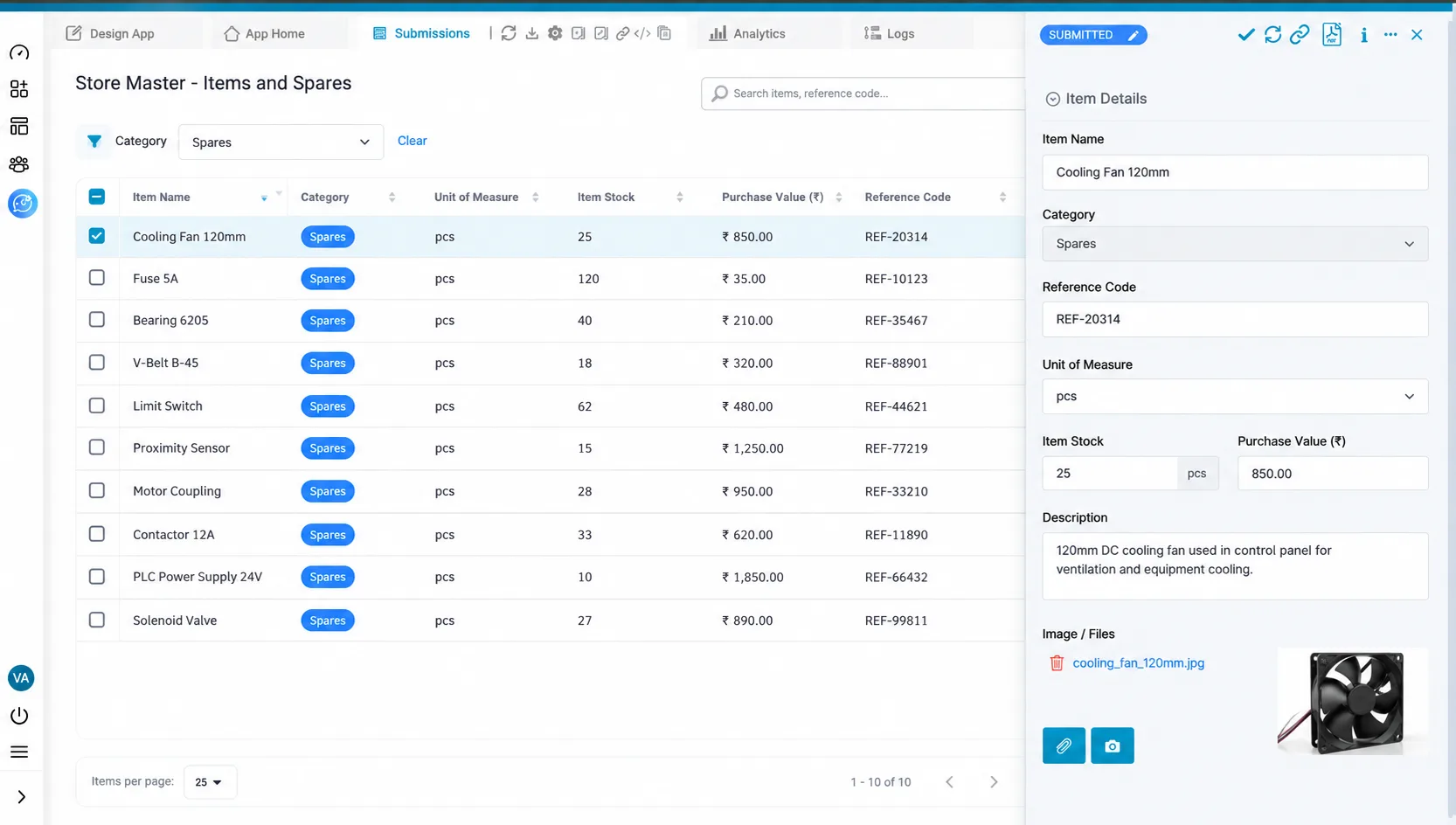
The item catalog (Store Master) is the app that holds all items the organisation tracks, including spare parts. The spares logging section of the maintenance report draws its item dropdown from this catalog, filtered to items categorised as Spares. If the catalog is not set up correctly, the filter either returns nothing or returns the wrong items.
Open the item catalog app and create one record per item. Add the following fields:
The most common data quality problem in an item catalog is duplicate entries: the same bearing listed twice with slightly different names, or the same lubricant listed once in litres and once in millilitres. Both types of duplicate corrupt consumption data.
Add a Validation block with Type of Validation set to Duplicate, select the Item Name and Unit of Measure fields, and set the level to Error. In Clappia, this blocks any submission where that combination already exists in the catalog. The second submission fails with an error message before it is saved. The same check applies to bulk uploads, so loading a large catalog from a spreadsheet rejects duplicate rows while the rest import normally.
The combination of name and unit rather than name alone is intentional. If your organisation legitimately stocks the same item in two different units (a lubricant available in both 1-litre and 5-litre containers), both can exist in the catalog because the unit of measure distinguishes them.
Before adding any spare parts to the catalog, confirm that Spares is one of the options in the Category dropdown. The maintenance report's item filter specifically looks for items where Category equals Spares. If the category is named anything else (Spare Parts, Spares and Consumables, and so on), those items will not appear in the filter.
If you need to support multiple subcategories within spares (fasteners, lubricants, electrical components, and so on), add those as additional category options alongside Spares, or use a separate Group or subcategory field for further classification. The filter in the report should match whatever category label you decide to use.
With the machine master and item catalog in place, the spares logging section of the maintenance report works as follows. After completing the maintenance details and checklist sections, the technician reaches the Spares Used section. This is a copyable section supporting up to ten copies, where each copy logs one spare part used during the job.

Here is how a spare moves from the catalog into a maintenance record:
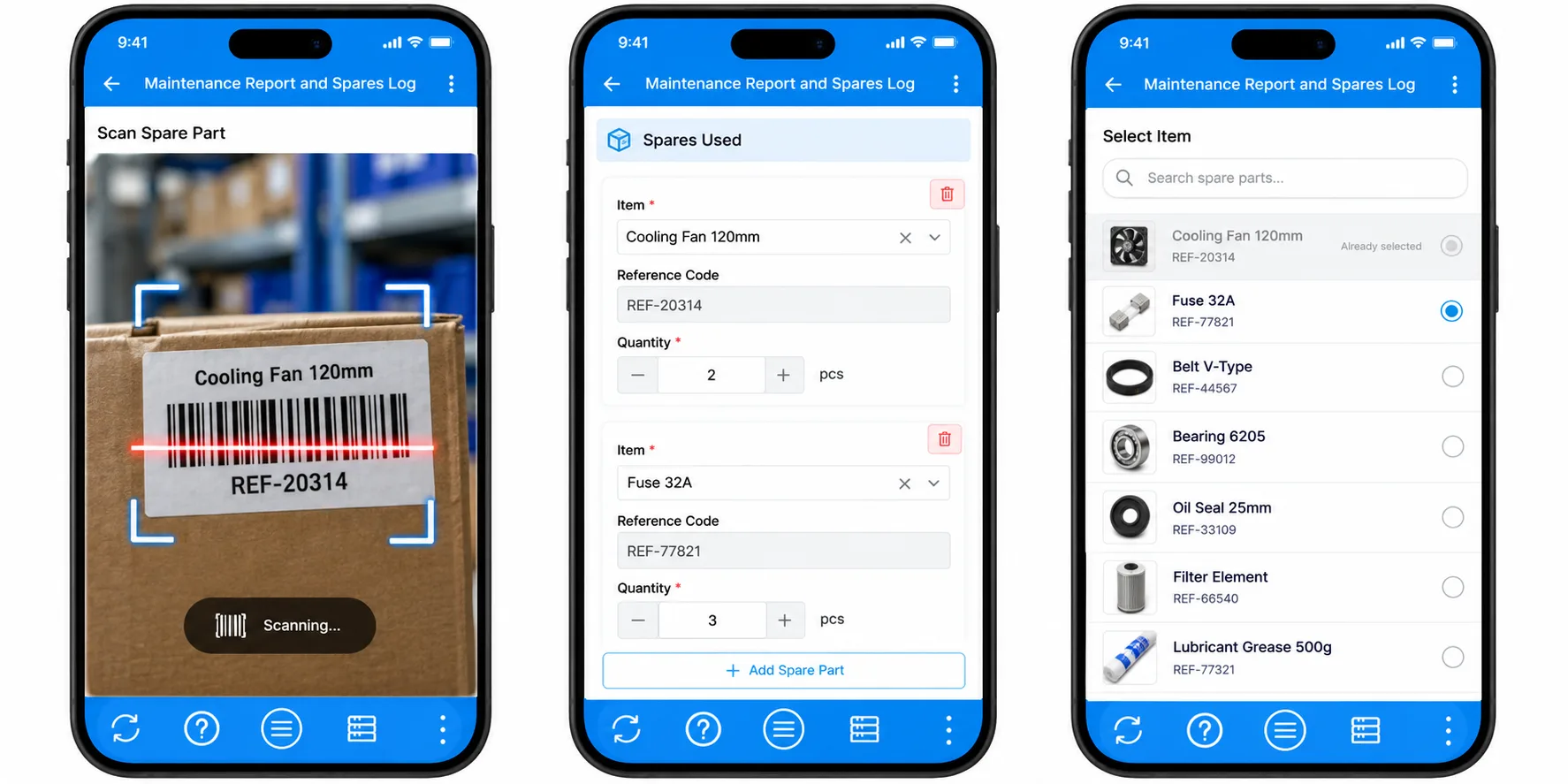
Each row has an Item field that uses a Get Data from App block configured to look up the item catalog filtered to the Spares category. The technician sees only spare parts in the dropdown, not the full catalog. When they select an item, three fields auto-fill from the item's record:
These auto-filled values are read-only. They confirm that the correct item was selected and provide a traceable reference for reconciliation with external systems.
After selecting the item, the technician enters the Quantity Used as a number. This is the only field in the row that requires manual input; everything else is either auto-filled or read-only. The unit of measure comes from the item catalog record and displays alongside the quantity, so the technician can confirm they are entering the value in the correct unit.
The Spares Used section has the copyable-section setting Fields to prevent duplicates enabled on the item field. It is available for Single Selector, Code Scanner, and Get Data from Other Apps fields. Once enabled, a technician filling in a new copy of the section cannot select an item that has already been selected in another copy. If your spares carry barcodes, a Code Scanner gives the same protection with faster entry.
Give technicians a spares dropdown that only shows clean, real parts, with duplicate checks and barcode scanning on the free plan.
Get started freeThis constraint exists because the correct way to log more of the same item is to increase the quantity in the existing row, not to create a second row. Without the constraint, accidental double-entries would produce inflated consumption figures that are difficult to identify and correct in aggregate reports.
To make this concrete, here is what a completed Spares Used section might look like for a scheduled maintenance job on a conveyor system:
| Item Selected | Reference Code | Quantity Used |
|---|---|---|
| Drive belt, 25mm width | REF-04421 | 2 |
| Bearing, deep groove 6205 | REF-08813 | 4 |
| Grease, lithium-based, 1kg | REF-11902 | 1 |
Each row was selected from the Spares-filtered dropdown. The reference codes auto-filled from the item catalog. The technician only entered the quantities. If they had tried to add drive belts again in a fourth row, Fields to prevent duplicates would not have let them select it. To keep the reports themselves clean, see our guide to preventing duplicate maintenance entries and bad data.
In Clappia, user permissions are configured per app. For the master apps and the report, the recommended access structure is:
The Clappia mobile app, available on Android and iOS, is where technicians access the maintenance report on the floor. Clappia supports offline mode: technicians preload the app while online, then fill in and submit forms without a network connection, and submissions sync when connectivity returns. Note that Get Data from Other Apps lookups, including the Spares Used item dropdown, do not work offline. In dead zones, technicians should select spares before leaving coverage or complete the spares section once they are back online.
A solar plant operator runs monthly preventive maintenance on inverters, trackers, and transformers across a large site. When a technician replaces a cooling fan or a fuse, they open the Spares Used section on their phone, scan the part's barcode or pick it from the Spares-filtered list, and enter the quantity. The reference code auto-fills, so the store team can reconcile against the ERP without retyping, and a part already logged in the report cannot be added a second time.
Because every part comes from one clean catalog, the plant now sees exactly how many fans and fuses each inverter consumes per quarter, and can stock critical spares against real usage. The same catalog can power a wider inventory management app.
The stores team at a manufacturing plant maintains the item catalog from the Clappia web app. New spares are added through bulk upload from the procurement spreadsheet, and the Duplicate validation rejects any row that repeats an existing Item Name and Unit of Measure. The team filters the catalog by Category to confirm every spare is labelled Spares, so nothing goes missing from the technicians' dropdown.
Engineering maintains the critical parts list on each machine record, which gives the stores team a clear list of what must always be in stock. Together, the two masters turn spares logging from free text into a structured record of what was used on which machine, and when. For tracking the equipment itself, see asset tracking with Clappia.
Accurate spares logging in a maintenance report depends on two master apps being correctly configured before any maintenance reports are submitted. The Machine Master provides the machine identifier that the report uses for filtering, the machine name that planners and technicians select from, and the critical parts list that links machines to their associated spare parts. The item catalog provides the spare parts dropdown with correctly categorised, duplicate-free items that technicians can select from during logging.
The three configuration decisions that matter most are: ensuring the Machine Name uniqueness rule is in place so no two machines share a name; ensuring all spare parts in the item catalog are categorised as Spares so the report's filter returns the right items; and ensuring the item catalog's duplicate prevention rule is active so the same part cannot be listed twice with different names.
Once both masters are populated correctly, the spares logging section of the maintenance report works through selection rather than free-text entry. Technicians choose from a curated, filtered list, and the report captures a structured, traceable record of what was used on which machine and when. For the next step, see our guide to linking maintenance planning to execution, and for broader programme guidance the US Department of Energy's operations and maintenance guidance for federal facilities is a useful reference.
Ready to know exactly which spares each machine consumes? Start building for free and set up your machine and spares masters without writing code. Your technicians log parts in seconds, and your stores team gets consumption data they can plan against.
In the Spares Used section of the maintenance report, the technician selects each part from a Get Data from Other Apps dropdown filtered to the Spares category, and enters the quantity. The part's name and reference code auto-fill.
Make the Spares Used section copyable and enable Fields to prevent duplicates on the item field. A part already selected in one copy cannot be selected in another.
Add a Duplicate validation on Item Name and Unit of Measure at the Error level. The same item in the same unit cannot be added twice, including through bulk upload.
The dropdown only shows items whose Category is exactly Spares. Check the item's category in the catalog and correct any variant label such as Spare Parts.
Yes. Use a Code Scanner block for the item field. Fields to prevent duplicates also works with Code Scanner, so the same part cannot be scanned into two copies.
Reports can be filled and submitted offline on the mobile app after it is preloaded, but the Spares Used lookup is a Get Data from Other Apps block, which needs a connection.
Support spare parts logging by fixing the master data first. In Clappia, a Machine Master with a duplicate-checked Machine Name and a critical parts list, plus an item catalog with a Duplicate validation on Item Name + Unit of Measure and a Spares category, feed a filtered Spares Used section in the maintenance report, where Fields to prevent duplicates stops the same part being logged twice.
L374, 1st Floor, 5th Main Rd, Sector 6, HSR Layout, Bengaluru, Karnataka 560102, India
3500 S DuPont Hwy, Dover,
Kent 19901, Delaware, USA


.svg)




3500 S DuPont Hwy, Dover,
Kent 19901, Delaware, USA
L374, 1st Floor, 5th Main Rd, Sector 6, HSR Layout, Bengaluru, Karnataka 560102, India