

Still need help?

This article explains the features of the NFC Reader block and how it can be used to design your app.
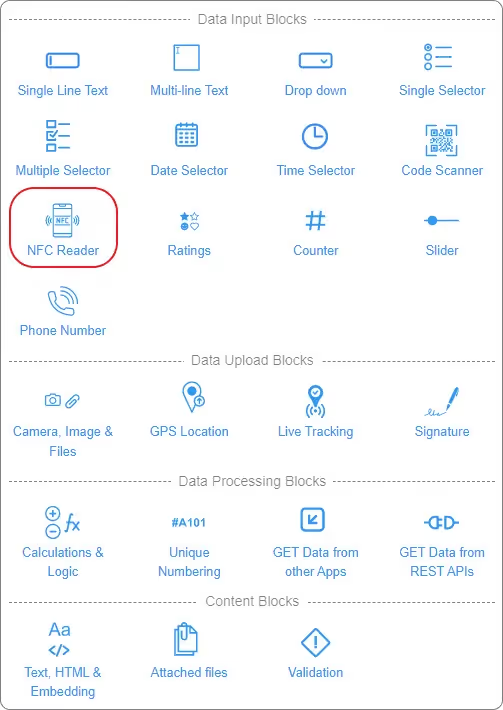
1. Updating Product details in the Inventory.
2. Marking Attendance (Check-in and Check-out).
3. Company asset allocation to employees.
4. Get equipment information during Audits and Inspections.
5. Field Marketing and Sales.
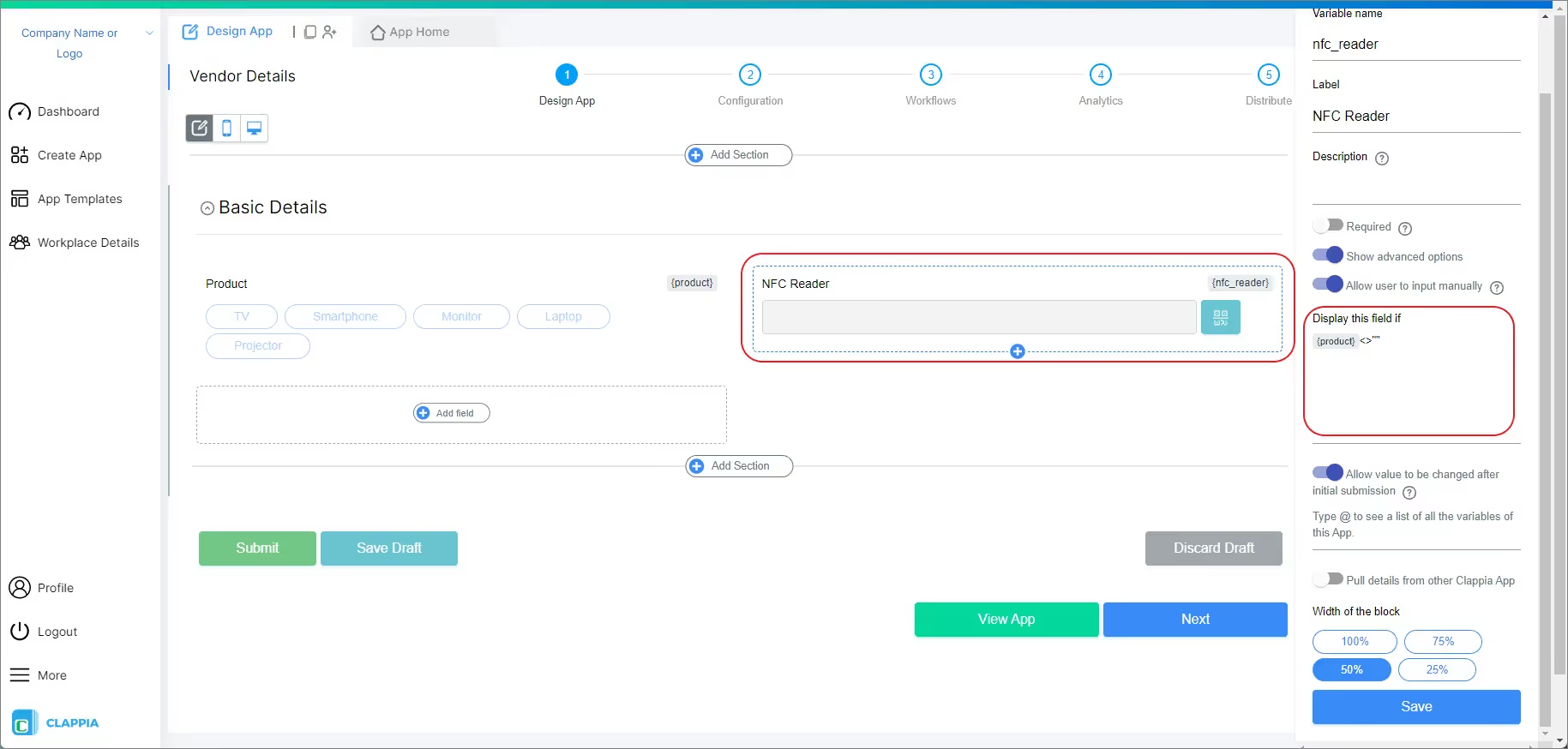
Click on the block and configure it by editing on the right panel.


The label is the name of the block that the end user sees in the app.
Example: Scan Product Details.
The description is the additional information provided to the end user which will be displayed below the input area.
Example: Tap on the NFC Tag of the Product.
This is how the NFC Reader block with the label and the description will look to the end user.

Enable this option if you want to make this field mandatory. If enabled, the end user can submit only if data is entered in this field.
Enable this option to show the advanced options to configure the NFC Reader block.
Enabling this option will allow the end-user to manually fill the data in this field.
Use this if you want to show or hide a field under certain conditions. It accepts the standard Clappia formulas, similar to conditional sections.
This option is enabled by default. Disable it if you don't want the users to edit this field's value once they create a submission.
For example, if a new submission has been created in an Inventory App, you might not want the customer name to be edited by anyone after the submission is created.
You can also write a formula here to conditionally allow editing the field after submission. For example, in the same Inventory app, the Supplier email field should be editable only if the status is not equal to CONFIRMED or if the user is an admin user. Below is the formula for this use case:
Enable this option to fetch data from other Clappia app after the NFC Reader reads and processes the information. The other Clappia app will act as a source app from where the data is being pulled.

Select the source app from where you want the data to be pulled into this app.

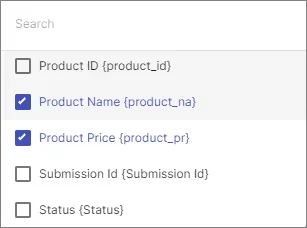
These are the fields that you need to show to the end users so that they can identify the item to be selected. For example, the app designer is setting Product Name as selection field. The data in this field will be the Product Name fetched from the selected source app.

These are the fields that will be fetched from the selected source app. In this example the app designer is selecting Product ID and Product Price to be fetched.
Enabling this option will allow the end-users to pull all the records from the source app. Disable this option if you want the users to pull only those records for which they have the necessary permissions.

The Advanced Label option allows you to change the label of a field dynamically based on a condition you define. Instead of always showing the same fixed label under the ‘Basic’ tab, the field can display different labels depending on requirements of the form. Use spreadsheet-like functions such as IF, AND, OR, etc. and make use of other field variables to set your conditions. Type @ and select the field.
This is useful when the meaning of a field changes based on context, business logic, or user choices.
For example:
You have a dropdown named Verification Type with options “Employee Verification” and “Device Verification”.
Your NFC Reader label should adjust based on the verification type.
So:
– If Employee Verification, show “Tap Employee NFC Tag”
– If Device Verification, show “Tap Device NFC Tag”
Formula:
This allows the same field to adapt its displayed purpose without needing multiple separate fields.
The Advanced Description option works exactly like Advanced Label, but it changes the description text instead. This is useful when guidance or instructions for a field need to change depending on earlier answers.
For example, using the same scenario from Advanced Label:
If you have a dropdown called Verification Type with options like “Employee Verification” and “Device Verification”, you may want the description of your NFC Reader field to guide the user differently depending on what they selected.
So:
– If the user selects Employee Verification, the description could say: “Tap the employee’s NFC tag to verify identity.”
– If the user selects Device Verification, the description could say: “Tap the device NFC tag to register the device.”
Formula:
This helps users understand what is required from them without showing unnecessarily long or irrelevant instructions.
Additional Examples (Apply to Both Advanced Label and Advanced Description)
1. Showing nothing until a selection is made
For example, if you have a dropdown field called Visit Category with options “Routine” and “Urgent”, you may want the label or description of a field to remain blank until the user first selects a category.
Once a selection is made:
Formula (can be used in either Advanced Label or Advanced Description):
The label/description stays empty until the dropdown has a selected value.
After the user picks an option, the selected text (Routine or Urgent) becomes the label or description.
2. Changing label/description based on language selection
For example, if your form includes a dropdown field called Select Language with options English, Spanish, and French, you can show the label or description in the selected language.
So:
Formula (can be used in either Advanced Label or Advanced Description):
The formula returns the text for the selected language.
Only one label/description is shown at a time, depending on what the user picks in the Select Language dropdown.
1. Variables do not change
When a field is created, its variable name is derived from the label you set in the Basic tab. That variable name is what you must use in formulas, workflows, and other logic. The visible label or description shown by Advanced Label / Advanced Description does not change the variable name.
2. Submissions tab: table view vs right panel
In the Submissions area, the table view always displays the labels from the Basic tab. When you open an individual submission, the right panel shows the labels and descriptions as they appear in the form (i.e., the Advanced Label and Advanced Description applied for that submission). This keeps the submission list consistent while letting reviewers see the context-aware labels and descriptions when viewing a record.
3. Bulk Edit shows Basic tab labels and descriptions
When you need to Bulk Edit submissions, the spreadsheet you download shows the labels and descriptions from the Basic tab only. Advanced Label and Advanced Description are not applied in Bulk Edit, so keep that in mind when preparing bulk updates.
4. Some fields cannot be used inside Advanced Label/Description formulas
Certain block types do not expose a variable that can be referenced in Advanced Label or Advanced Description. If a block does not expose a variable, you cannot use it inside the formula.
Desktop View: Set the width of the PDF Viewer block in the desktop view. Options are 100%, 75%, 50%, or 25%.
Mobile View: Set the width of the PDF Viewer block in the mobile view. Options are 100% or 50%.
L374, 1st Floor, 5th Main Rd, Sector 6, HSR Layout, Bengaluru, Karnataka 560102, India
3500 S DuPont Hwy, Dover,
Kent 19901, Delaware, USA


.svg)




3500 S DuPont Hwy, Dover,
Kent 19901, Delaware, USA
L374, 1st Floor, 5th Main Rd, Sector 6, HSR Layout, Bengaluru, Karnataka 560102, India