

Still need help?

The History feature allows admins to view a detailed record of all changes made to a submission. This includes edits to field values, ownership changes, status updates, version restorations, and device and session details for each change. It provides full visibility into how a submission has evolved over time.
History is useful when you need to:
To access the History of a submission, open the app > go to the Submissions tab.
Select a submission and the details of the submission will appear on the right panel. Click on the three dots icon and you will get a drop down for more options. Click on the History option.

A detailed view of the history of the submission, starting from creation of the submission, will be displayed.

The History panel now supports two different viewing modes to help admins understand submission changes more clearly:
You can switch between these views using the toggle icons available at the top-right corner of the History panel.
Both views display the same historical data, including field edits, status updates, owner changes, workflow-triggered updates, and other submission modifications.
Each entry in the History panel includes an info icon (ⓘ) on the right side.
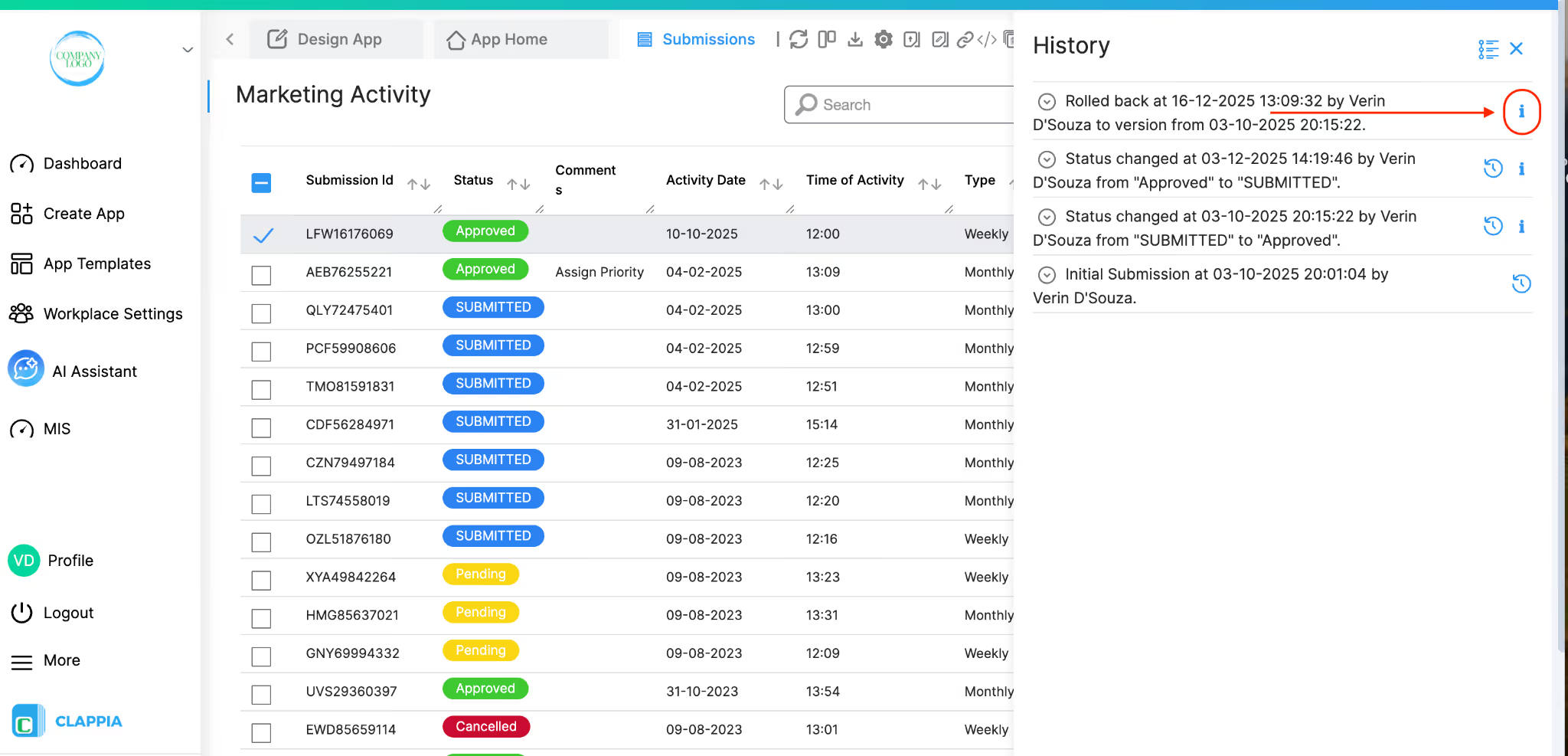
Clicking it opens a History Info panel showing the device and session details for that specific change. This is available in both List View and Diff View.
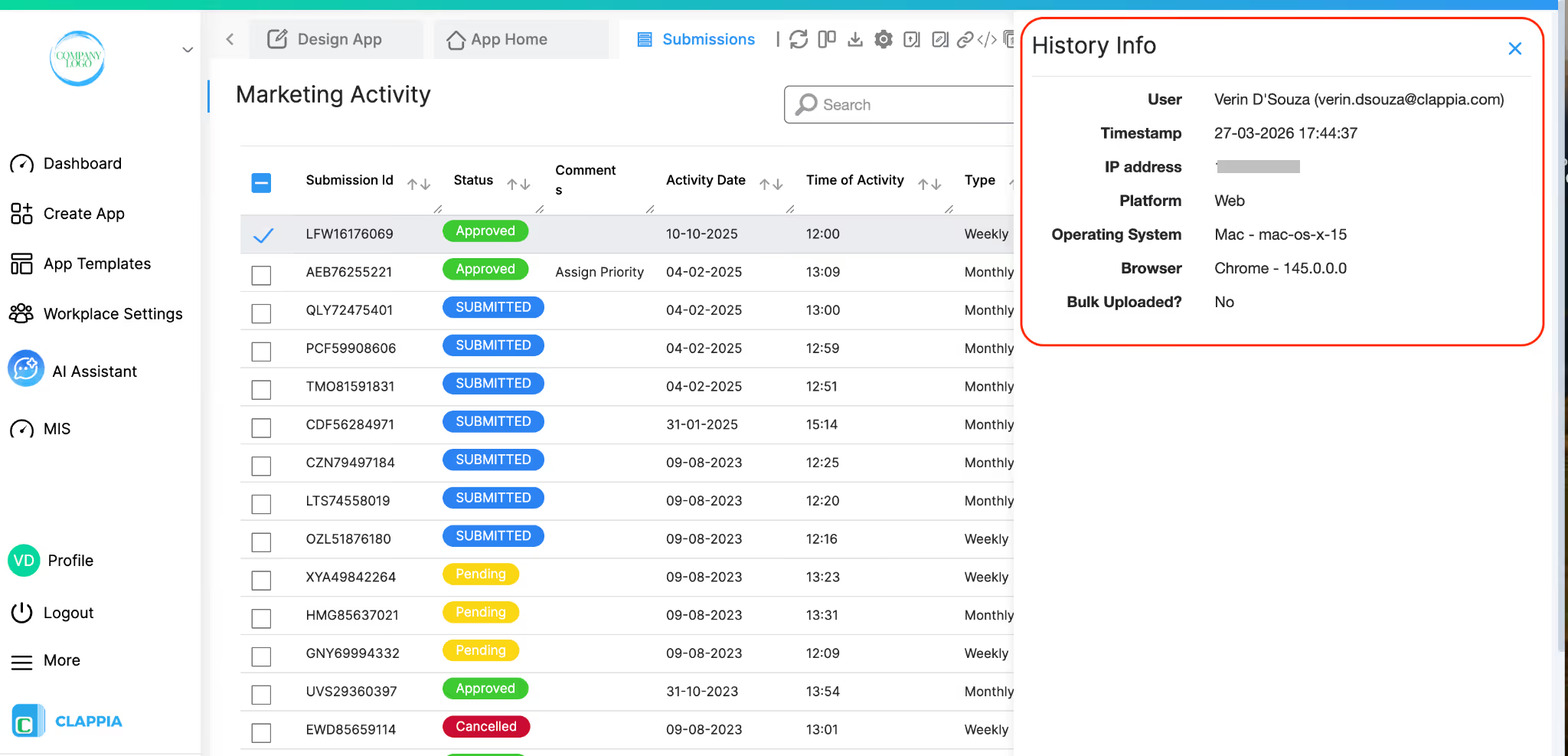
The History Info panel displays the following for each history entry:
This applies to all types of history entries such as initial submissions, field edits, status changes, ownership updates, and workflow-triggered edits.
Note: Device and session details are captured from the point this feature was released onwards. For history entries created before this update, these fields will show as N/A.

List View displays submission updates in a structured, chronological format.
Each entry shows:
When you expand an entry, you will see the complete submission snapshot for that version. This includes:
If a Print template is configured for the app, a PDF icon will be available next to eligible historical versions in List View. This allows you to download or view the PDF as it corresponds to that specific version of the submission.

Use List View when:

Diff View highlights only the changes made during a specific update.
Instead of showing the full submission snapshot, it compares the previous version with the updated version and displays only what was modified.
Changes are colour-coded for clarity:
This applies not only to field edits, but also to:
Unchanged data is not displayed in Diff View, making it easier to focus only on what was altered in that specific update.
Use Diff View when:
Both views allow you to restore a submission to a previous version.

When a submission has two or more updates, the History panel will show a restore icon next to each earlier version. This allows you to restore the submission’s data to any of those previous versions. You can also restore it back to the latest version at any time.

Each update made to a submission appears in the History panel as “Changed at …”, and expanding it shows what was modified. When you restore a submission to an earlier version, the History panel records this as “Rolled back …”, indicating which version the submission was restored to and when the restore action happened.
Restoring a submission only updates the data to the selected version. It does not trigger any workflows, even if workflows are normally set to run on submission edits. This ensures that restoring history is safe and does not cause any automated processes to run unintentionally.
L374, 1st Floor, 5th Main Rd, Sector 6, HSR Layout, Bengaluru, Karnataka 560102, India
3500 S DuPont Hwy, Dover,
Kent 19901, Delaware, USA


.svg)




3500 S DuPont Hwy, Dover,
Kent 19901, Delaware, USA
L374, 1st Floor, 5th Main Rd, Sector 6, HSR Layout, Bengaluru, Karnataka 560102, India