Rolling out a new app to a distributed field team rarely goes as smoothly as a launch plan suggests. The app is ready, the training is done, and then the questions start. Some agents cannot log in. Some have the app but have never opened it. Some cannot install it at all because their device does not meet the requirements. And the team managing the rollout has no consistent way to track any of this across dozens or hundreds of agents spread across different territories.
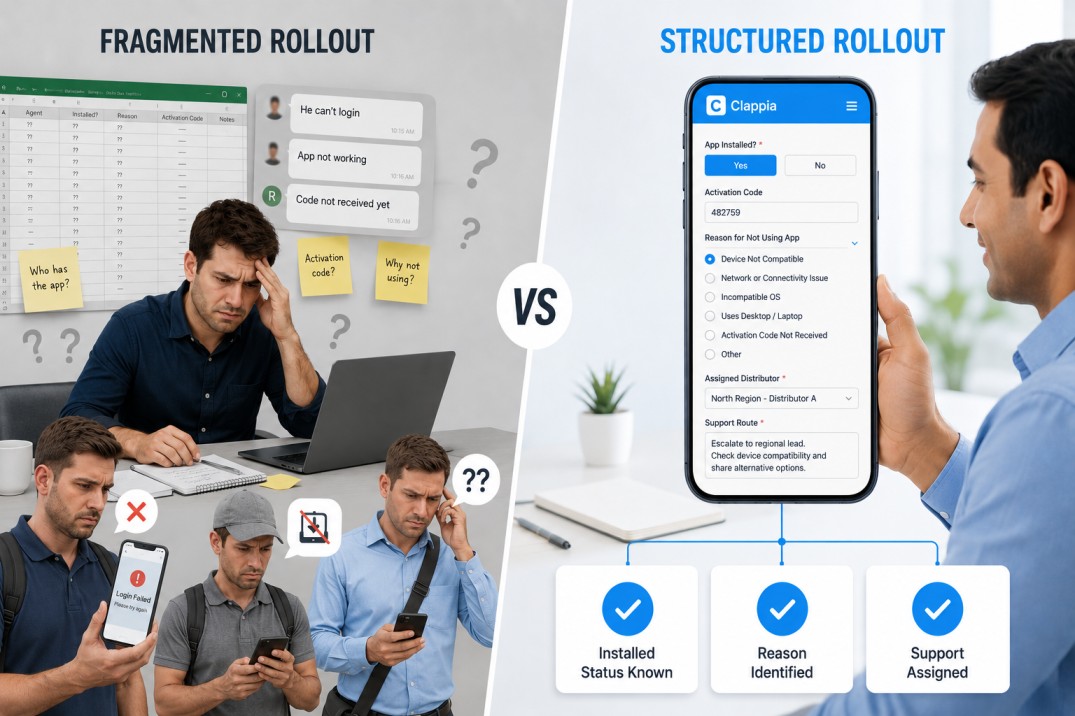
The typical response is to ask coordinators to update a shared spreadsheet or report issues through a group chat. Both approaches produce fragments of information that are hard to act on: the spreadsheet has gaps, the chat has context but no structure, and nobody has a clear picture of where the rollout actually stands.
A single-page intake form built in Clappia, a no-code platform for field operations apps, gives the rollout team a central, structured record for every agent interaction. This article explains the three specific problems a structured form solves and how each field in the form addresses one of them.
Most field app rollout issues are not caused by the app itself. They happen because rollout teams lack reliable information about installation progress, adoption barriers, and support ownership. The following three challenges are the most common sources of confusion during deployment and are exactly what this intake form is designed to address.
The most basic question in any app rollout is whether the app is actually on the agent's device. Without a structured way to capture this, the answer depends on whatever the coordinator can remember or has written down informally. Across a large network, this adds up to a significant gap in visibility.
The intake form addresses this with two fields. The first is an App Installed? field, a Yes/No block that records the installation status as a clean binary value. In Clappia, a Yes/No block displays as two tappable chips on mobile, so the coordinator records the status with a single tap rather than typing. The second is an Activation Code field, a Number block that captures the agent's authorisation code if one is required for access. This is optional since not all agents will have received their code yet, but having the field present means the coordinator can record it when it is available rather than tracking it separately.
With these two fields in every submission, the rollout team can filter the submission list in Clappia at any point and see exactly how many agents have the app installed, how many do not, and how many are waiting for an activation code.
When an agent is not using the app, the reason matters. A device compatibility issue requires a different response than a missing activation code, and both require a different response than a connectivity problem. If the reason is recorded as free text in a notes column or a chat message, it is practically impossible to aggregate across the network and identify the most common barrier.
The intake form handles this with a Reason for Not Using App field, a Radio Button block with a predefined list of options. Radio Button options in Clappia are displayed as chips on mobile, so the coordinator taps one option rather than typing a description. The stored value is always exactly one of the defined options, which means every non-adoption reason in the submission database is immediately filterable and countable.
A practical option list for a mobile sales app rollout covers the main categories of blockers:
This field is optional and its section is collapsed by default when the form opens. In Clappia, a collapsed section shows only its heading until the coordinator taps to expand it. For agents who have the app installed and working, this section stays collapsed and out of the way. For agents with a blocker, the coordinator expands it, selects the reason, and moves on.
When every non-adoption reason is stored as one of five defined values rather than a free-text description, a manager can see the most common barrier across the whole network in seconds. That visibility is what drives targeted resolution rather than case-by-case support.
The third challenge in a distributed rollout is knowing who is responsible for resolving each case and what the next steps are. Without structure, support requests fall into a gap between the coordinator who recorded the issue and the team that needs to act on it. Cases get forgotten, duplicated, or handled inconsistently because the escalation path was never written down in a standard place.
The intake form addresses this with two fields. The first is Assigned Distributor, a Radio Button block that identifies which distributor or regional lead is responsible for this agent. This field is required, which means no submission can be completed without attributing the case to a responsible party. The options are predefined, so the value is always one of the valid distributor names rather than a freeform entry that might not match any real entity in your system.
The second is Support Route, a Multi-Line Text block where the coordinator documents the specific escalation path or internal steps to follow for this case. This field is also required. The combination of a required distributor selection and a required support route means every submission leaves a clear trail: who is responsible and what should happen next. Both sections are collapsed by default and must be actively expanded and completed before the form can be submitted.
The three required fields in this form (Agent Contact Number, Assigned Distributor, and Support Route) prevent the most damaging type of incomplete record: one that looks submitted but cannot be acted on. In Clappia, a required field blocks submission until it is filled. The form will not send with a blank contact number, an unselected distributor, or an empty support route field.
The Agent Contact Number field uses a Phone Number block that also validates the format of the entered number. This catches entries that are too short or contain characters that cannot be part of a phone number, preventing a different category of incomplete record: one where the contact details exist but are wrong. Set the default country dial code in the block settings to match your primary operating region. Coordinators then only need to enter the local digits, and the country code is already in place.
| Field | Type | Required | Solves Which Problem |
|---|---|---|---|
| App Installed? | Yes/No | No | Visibility: records installation status cleanly |
| Activation Code | Number | No | Visibility: captures the authorisation code when available |
| Agent Contact Number | Phone Number | Yes | Completeness: primary identifier for follow-up; format validated |
| Contact Email | Single Line Text | No | Completeness: secondary contact for digital follow-up |
| Reason for Not Using App | Radio Button | No | Adoption blockers: structured reason from a predefined list |
| Assigned Distributor | Radio Button | Yes | Support routing: identifies the responsible party |
| Support Route | Multi-Line Text | Yes | Support routing: documents the escalation path |
A common assumption when switching from a spreadsheet to an app is that the app needs to automate something to be worth the switch. For this form, that is not the case. In Clappia, workflows are optional additions. The form captures structured, searchable, filterable data for follow-up, and that data is immediately usable by the rollout team without any automation in place.
A coordinator reviewing submissions in Clappia can filter by installation status, distributor, or blocker reason, see every case that needs attention, and act on each one according to the Support Route field. The structure of the form is what makes this possible, not the presence or absence of automated actions.
When the process matures and the team wants to add automation, Clappia's workflow feature supports it without any changes to the form itself. An automated email to the assigned distributor when a new record is submitted, or a status update when a case is resolved, can be added as a workflow action at any point.
The form is built for field use. The Clappia mobile app, available on Android and iOS, presents it in a layout optimised for a phone screen. The four fields that apply to every interaction are expanded and visible the moment the form opens. The three collapsed sections expand on tap. Radio Button chips are large enough to tap accurately without zooming. The whole interaction takes under two minutes for a standard check-in.
For coordinators working in areas without reliable mobile data, Clappia supports offline mode. The form can be filled in and saved as a draft without a network connection. Submissions sync automatically when connectivity returns. Draft saving is available as an app setting and allows coordinators to save partial records and return to them before submitting.
In Clappia, user permissions are configured per app. For a rollout intake form, two access levels cover most team structures:
| Role | Access Level | What They Can Do |
|---|---|---|
| Field Coordinator | Submit Only | Fill in and submit the form; view and edit their own past submissions; save drafts |
| Rollout Manager or Admin | Full Access | View all submissions; filter by distributor, status, or date; update the form configuration |
The three challenges that make field app rollouts difficult to manage, not knowing who has installed the app, not understanding why some agents are not adopting it, and not having a clear support path for each case, are all information problems. They exist because the data is scattered, unstructured, or incomplete.
A single-page intake form with structured fields, required validations, and predefined option lists addresses all three at the point of data entry. The installation status is a clean binary. The non-adoption reason is one of a defined set of values. The assigned distributor and support route are required before submission is possible. Every record that enters the database is complete and actionable.
The form runs on any phone, works offline, and requires no automated workflows to deliver immediate value. To build it, create a new app in Clappia and add the seven fields described above. Your rollout team can start submitting structured records on the same day.
L374, 1st Floor, 5th Main Rd, Sector 6, HSR Layout, Bengaluru, Karnataka 560102, India
3500 S DuPont Hwy, Dover,
Kent 19901, Delaware, USA


.svg)




3500 S DuPont Hwy, Dover,
Kent 19901, Delaware, USA
L374, 1st Floor, 5th Main Rd, Sector 6, HSR Layout, Bengaluru, Karnataka 560102, India