viaSocket is an AI-powered automation platform that allows you to connect Clappia with over 1,700+ other web applications (like Slack, Gmail, HubSpot, and Shopify). By setting up a "WorkFlow," you can automate the movement of data between Clappia and external tools without writing any code.
A Clappia Account: Ensure you have an active workplace.
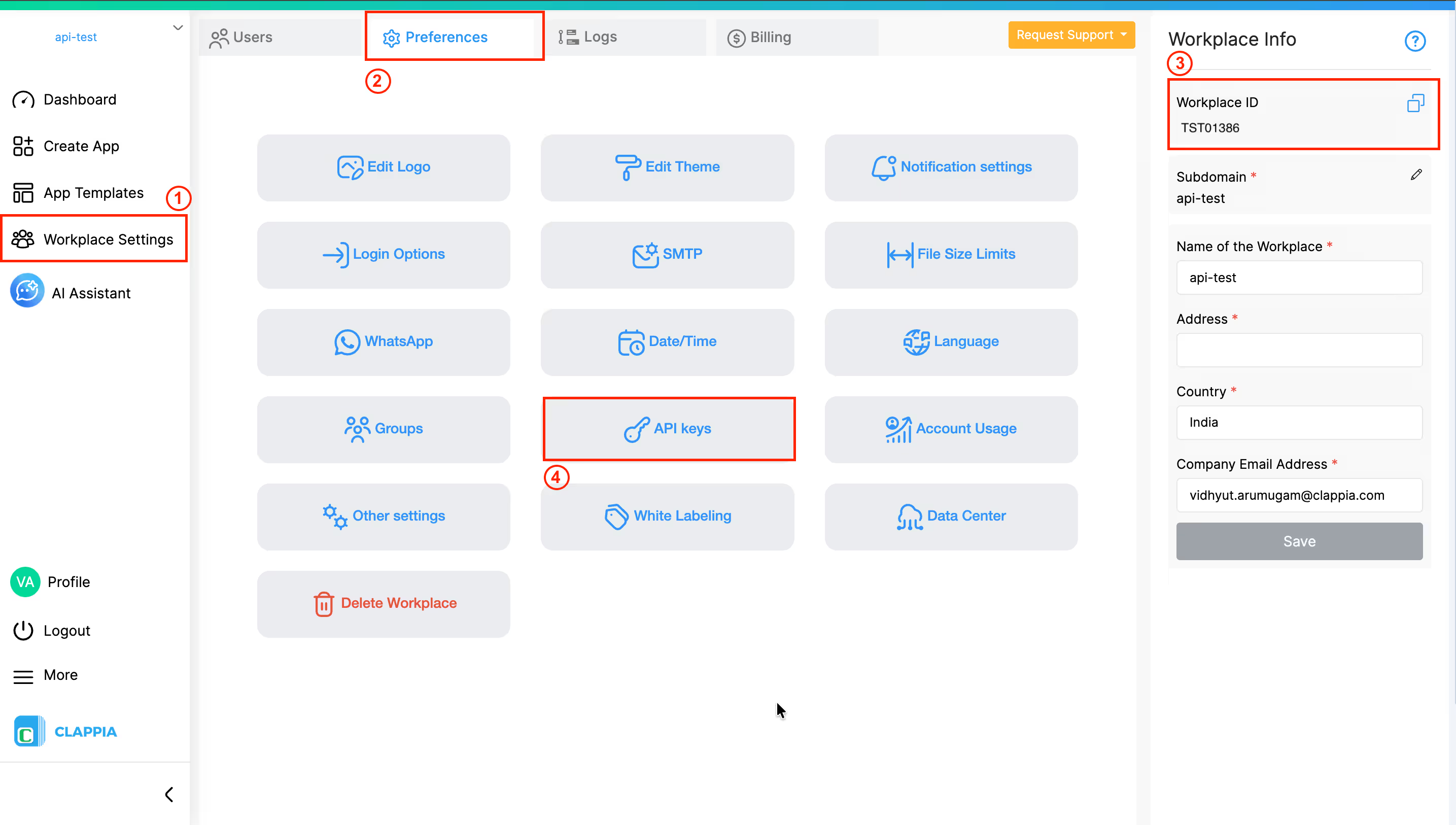
Clappia API Key & Workplace ID: - Go to Workplace Settings > Preferences > API Keys to generate your key. - Your Workplace ID is found in the same panel or in your browser's URL after /workplace/preference.
2. Setting Up the Integration
When you want an external event (like a new Shopify order) to create a record in Clappia:
1. In viaSocket, select your source app (e.g., Google Sheets) and set the trigger.
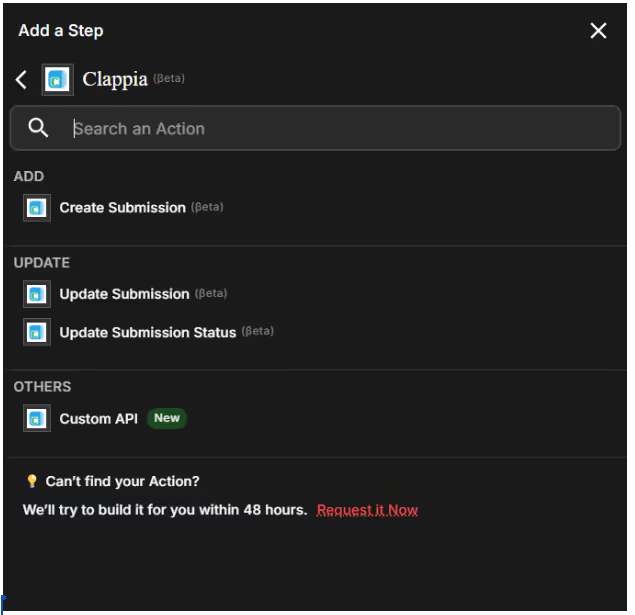
2. Add a new step and search for Clappia.
3. Choose an action: Create Submission, Update Submission,Update Submission Status or Custom API.
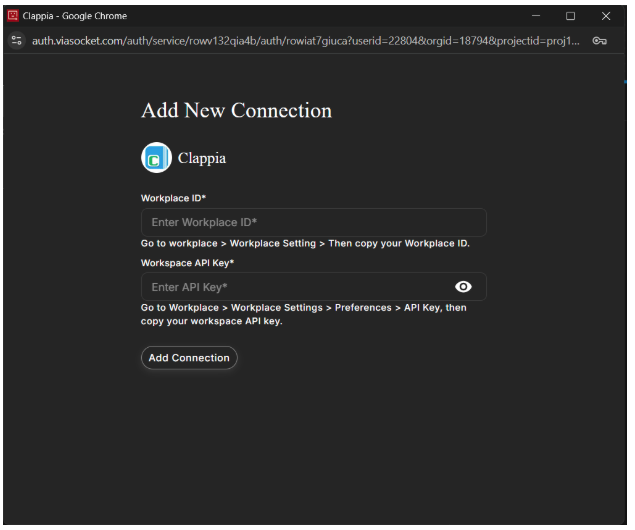
4. Authenticate using your API Key and Workplace ID.
5. Map the data from your source app into the corresponding Clappia field names.
3. Top Automation Examples for Clappia Users
I. Support Ticket Routing
Trigger: New email received in a shared support inbox.
viaSocket Action: 1. AI Agent: Summarize the issue and detect sentiment. 2. Clappia: Create a new record in your "Support Tracker" app with the summary and priority level.
II. Scheduled Data Backups
Trigger: viaSocket Cron Trigger (e.g., Every Sunday at Midnight).
viaSocket Action: 1. Clappia: Fetch all submissions from the past week. 2. Google Sheets: Append the data to a master backup spreadsheet.
4. Advanced Logic & Tools
AI Agent: Use this in the middle of your flow to transform messy text data from Clappia into structured categories before sending it to a CRM.
Human Intervention: Set a flow to pause after a Clappia submission. The flow will only proceed to the next app action once a manager clicks "Approve" within the viaSocket dashboard.
Custom JS Logic: Use the "Code" block to perform complex calculations on Clappia data that go beyond standard formulas.
5. Troubleshooting
If your flow is not working as expected:
Check viaSocket History: Look for "Mapping Errors" where a field name in Clappia might not match the expected format in the destination app.
API Limits: Ensure your Clappia plan has sufficient API credits for the volume of data you are processing.





.svg)



