

Still need help?

Clappia’s AI allows you to create apps quickly, but how effective it is depends on how you use it. Some users expect the AI to produce an app that matches their exact requirement in a single attempt. When that doesn’t happen, it can feel like the AI isn’t working as expected.
In reality, the AI is designed to guide you through the app-building process step by step. Understanding how it works, and how to interact with it at each stage, helps you get much better results with fewer iterations. This guide walks through practical ways to use Clappia’s AI more effectively.
Click here to read more about using Clappia’s AI Assistant.
The AI Assistant builds apps based on the information you provide. If the prompt is very brief or generic, the app it creates will also be generic. This doesn’t mean the AI is limited, it simply means it doesn’t yet have enough context. However, the app it creates here can still be used as a starting point.
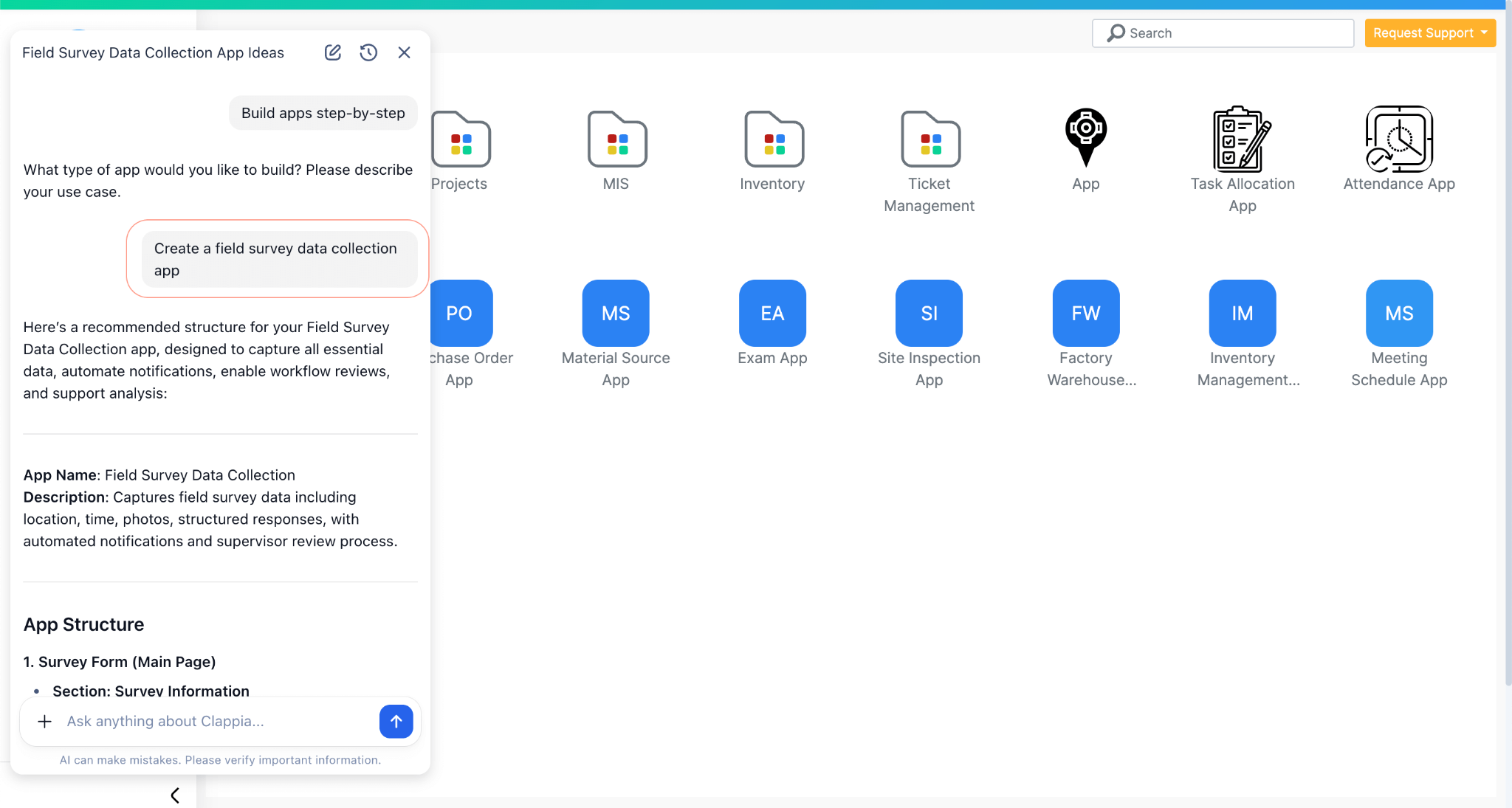
If you already know what you want the app to do, it helps to describe your requirements clearly. This can include:
You can also be explicit about how the data should be captured. For example, instead of saying “Create a purchase order app”, you could say:
“I need a purchase order app with vendor name, item table with quantity and price, a total amount calculation, and an approval field for the manager.”
You can mention:
Be as descriptive as possible. Providing both the context (what the app is for) and the structure (what fields and logic are needed) helps the AI propose a setup that is much closer to what you have in mind.
Providing this level of detail upfront reduces the number of changes needed later and helps the AI suggest a structure that is closer to your actual requirement.
When you ask the AI to create an app, it does not immediately build it.
Instead, the AI first proposes a structure. This includes the layout of the app, the fields it plans to add, and how the app is organised. In some cases, the AI may even suggest more than one way to approach the same requirement.
This proposal step happens regardless of how you start, whether you used the Create App option with a text prompt or uploaded a document. The idea is that you always get a chance to review what the AI intends to build before anything is created.
At this stage, you can interact with the AI and ask for changes. For example, you can ask it to:
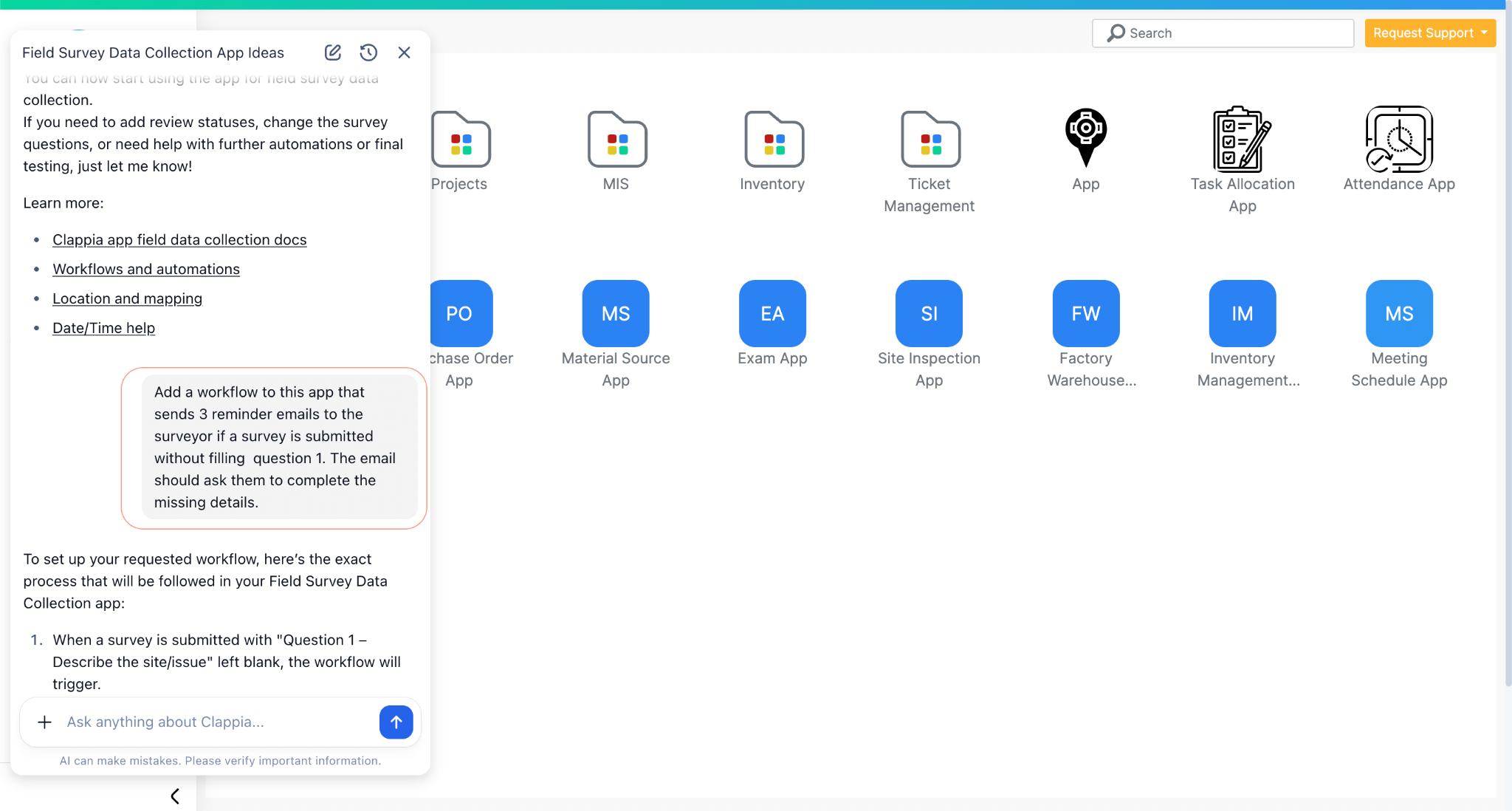
You can also use this stage to clarify things like:
Only after you confirm that the proposed structure looks right does the AI proceed to build the app. This step is intentional and gives you control early on, so you don’t have to redo work later.
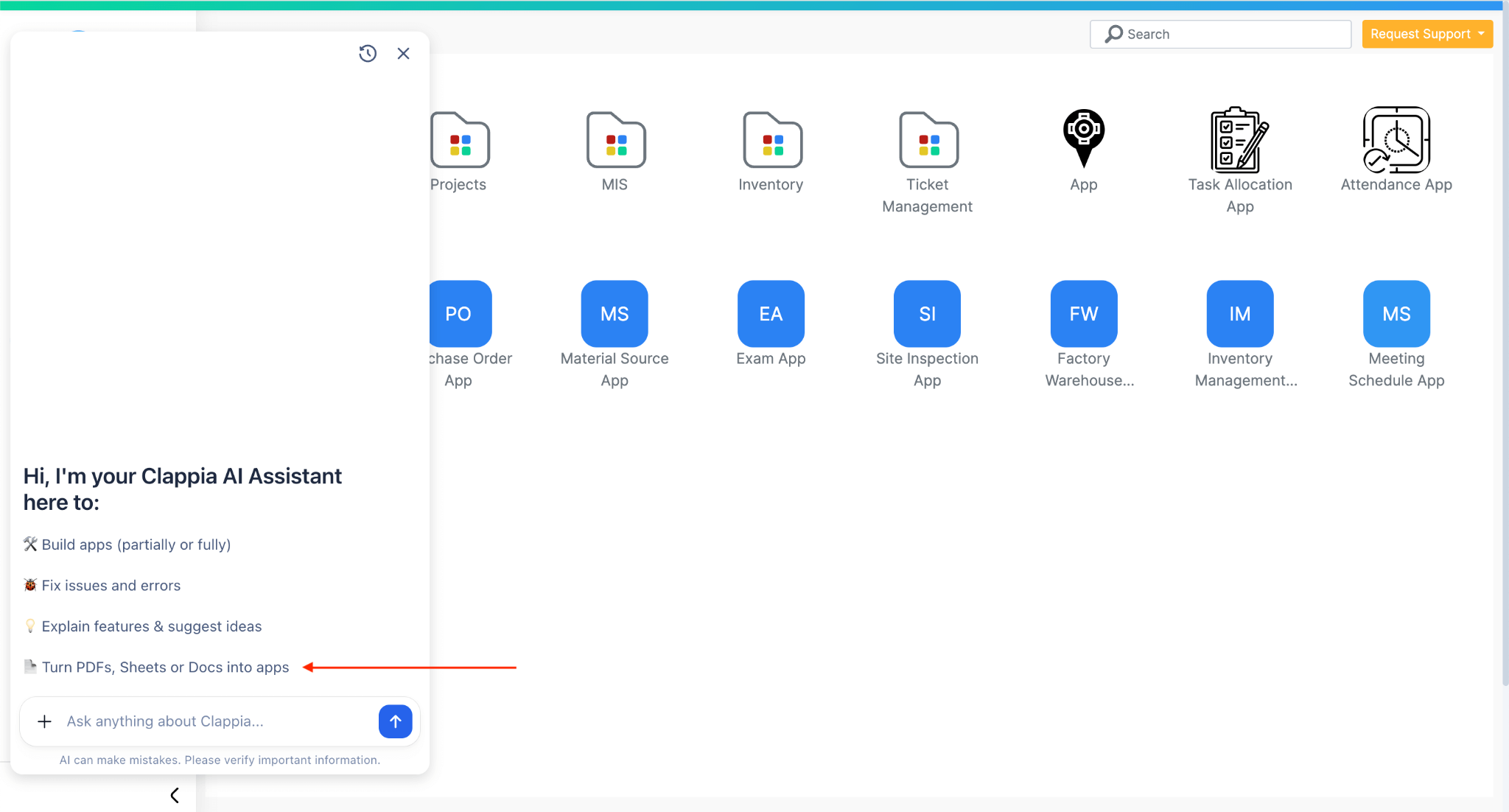
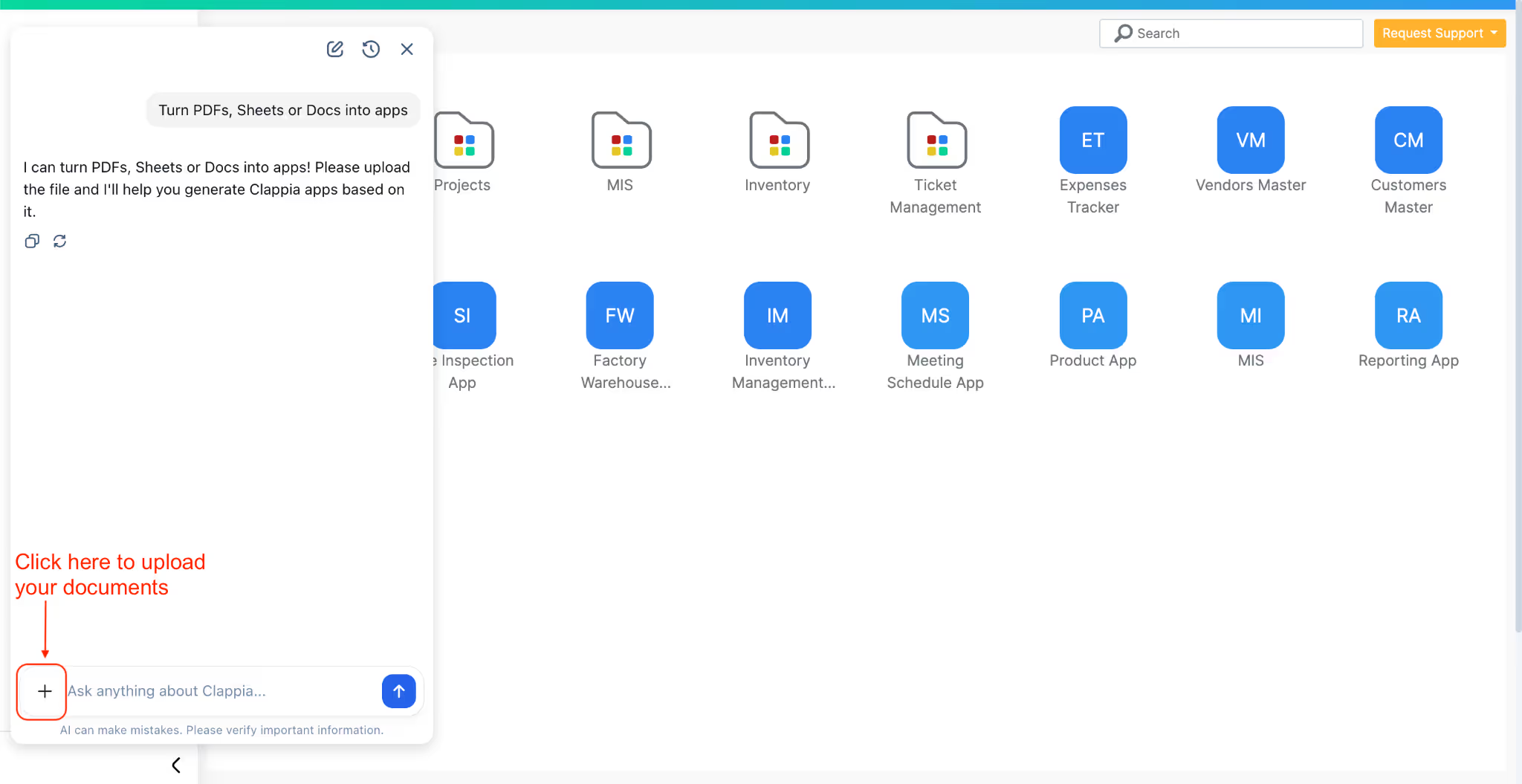
If you don’t want to describe everything in text, you can upload documents or images to the AI by using the ‘Turn PDFs, Sheets or Docs into Apps’ option. These could be existing forms, checklists, PDFs, SOPs, or any document that explains what needs to be built.
The AI reads the uploaded content and uses it to understand your requirements. Even in this case, it still proposes a structure first and asks for your confirmation before creating the app. You can review this structure, request changes, or ask the AI to proceed.
For example, if you upload an existing inspection checklist or internal form, the AI will extract the fields and layout from it and suggest an app structure based on that content. You can then fine-tune field types, add calculations, or adjust sections before moving ahead.
If your requirement is large or complex, it’s often better to break it down into parts. When too much information is given at once, the AI may miss certain details. Working step by step makes it easier to refine the app and ensure nothing important is overlooked.
Clappia’s AI is not limited to creating apps from scratch. You can use it at any point to edit or improve an existing app by selecting the option ‘Fix issues and errors’.
You can ask the AI to:
Just describe what you want changed. This could be as simple as adding a new field or as detailed as modifying how a section or workflow is organised.
One important limitation to keep in mind is that the AI cannot delete fields. This restriction exists to prevent accidental data loss. Other changes, however, can be made either through the AI or manually.
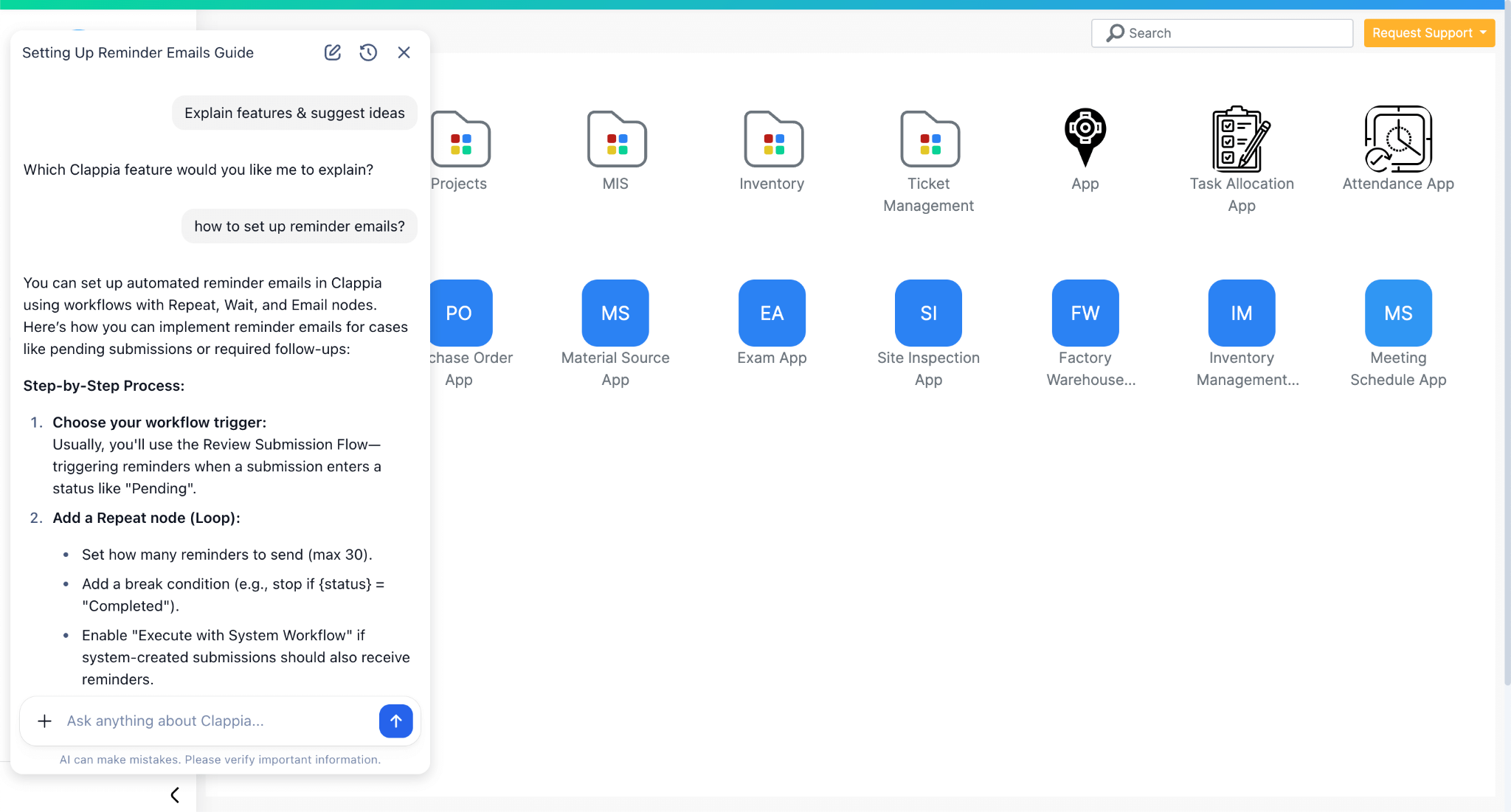
You don’t have to start by asking the AI to build an app right away.
If you’re unsure about how to structure your app, what calculations are needed, or how certain logic should work, you can first use the AI as a guide. You can ask questions, explore different approaches, and clarify your understanding before moving on to the build step.
Use the option ‘Explain features & suggest ideas’. For example, you might ask the AI:
This helps you plan better before moving ahead with app creation or edits.
Even when used effectively, the AI can make mistakes. This is true for any AI platform. The first version of the app it creates should be treated as a starting point rather than a finished product.
From there, you can:
Since Clappia is a no-code platform, making manual changes is quick and doesn’t require technical effort. You can also continue using the AI alongside manual edits to guide you through refinements.
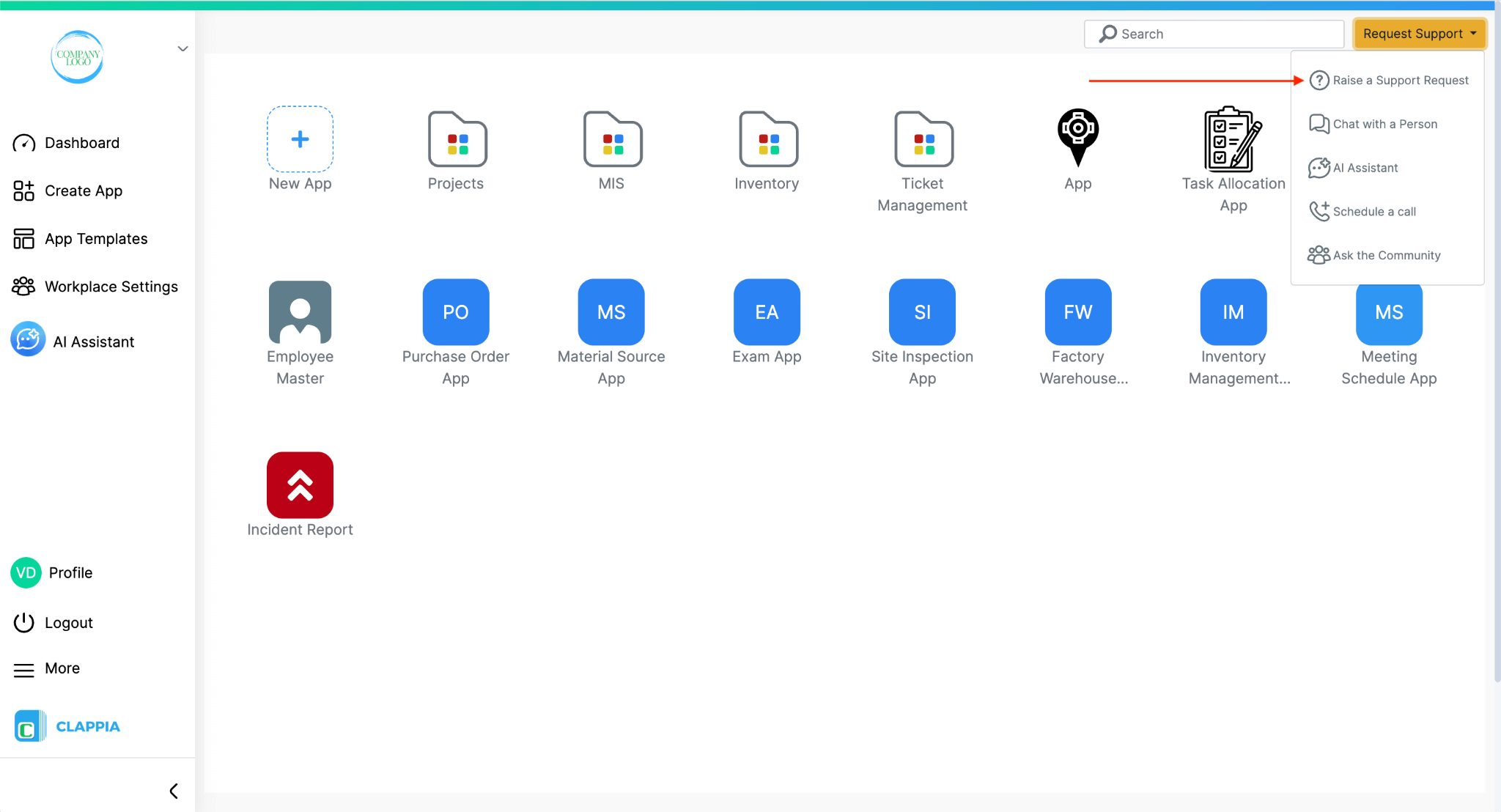
If you’re unable to build the app yourself, or if you feel stuck even after using the AI and making manual changes, you can always reach out to the Clappia support team.
This is especially useful when:
Support can help you understand how to set up your app correctly or assist you in completing what you’re trying to build.
Using the AI Assistant effectively is about understanding how it guides you through the process and knowing when to provide more detail, review suggestions, or make changes step by step. With the right approach, the AI can help you create apps quickly while still giving you full control over the final result.
L374, 1st Floor, 5th Main Rd, Sector 6, HSR Layout, Bengaluru, Karnataka 560102, India
3500 S DuPont Hwy, Dover,
Kent 19901, Delaware, USA


.svg)




3500 S DuPont Hwy, Dover,
Kent 19901, Delaware, USA
L374, 1st Floor, 5th Main Rd, Sector 6, HSR Layout, Bengaluru, Karnataka 560102, India